
記録
調査プロトコル
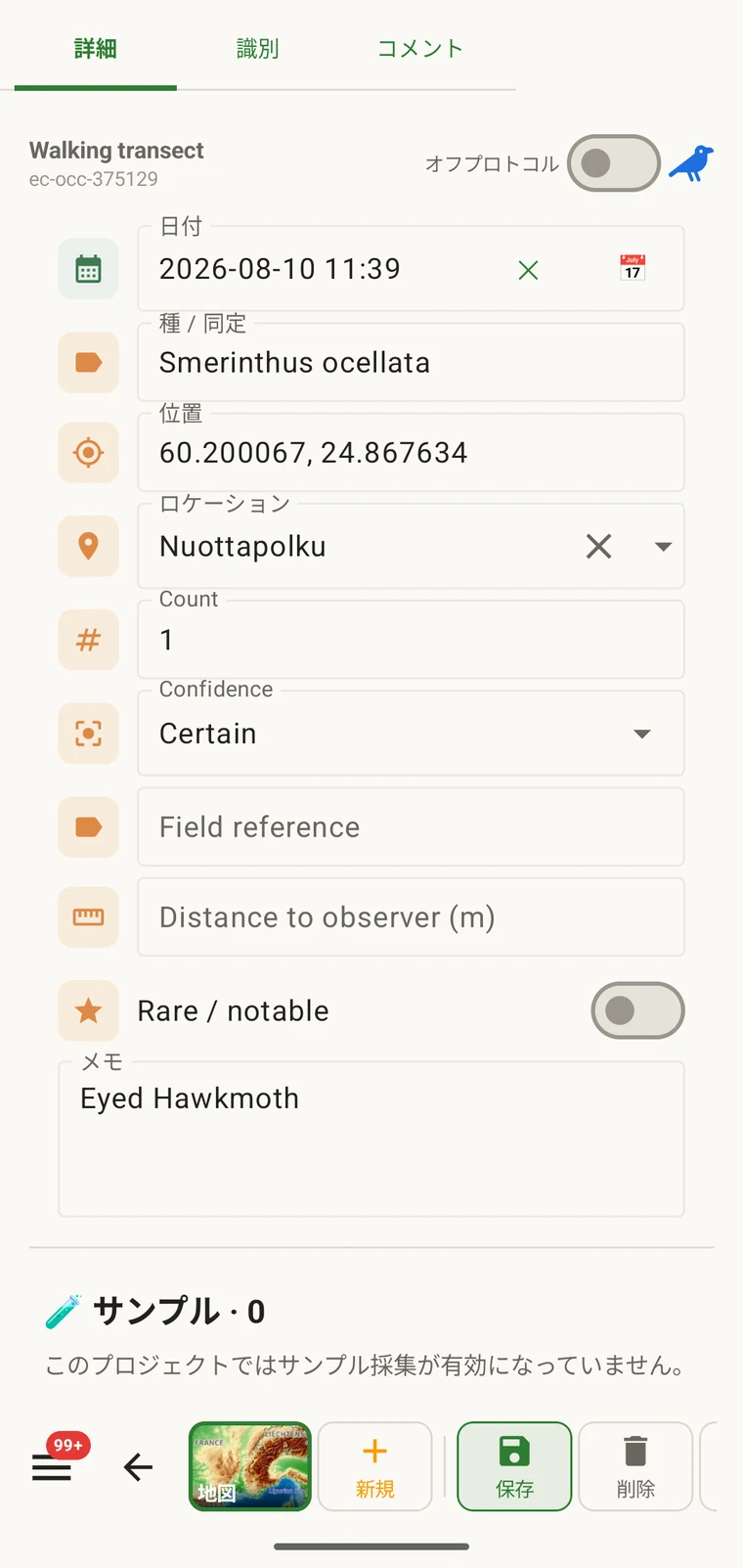
プロトコルは、観察記録フォームにどのフィールドが現れるか、そのうちどれが必須か、単位と値リスト、何をもって完全な観察記録とするかなど、レコードが何を含まなければならないかを定義します。プロジェクト内のすべてのレコードは 1 つのプロトコルの下で作成され、そのプロトコルが記録者に表示されるフォームも決定します。
プロトコルが制御する内容
プロトコルは、記録によって生成される構造を定義します。プロトコルを変更するとフォームも変わるため、フォームとカスタムフィールドとこのページは関連する内容を扱っています。フォームのページはレイアウトとフィールド単位の操作を扱い、このページはそもそもどのフィールドが存在するかを決めるプロトコルを扱います。
| プロトコルが定義する内容 | 記録への影響 |
|---|---|
| 表示されるフィールド | 観察記録フォームに現れるデータフィールドの集合です。プロトコルに含まれないフィールドは表示されず、入力もできません。 |
| 必須フィールド | レコードを保存する前にどのフィールドを入力しなければならないかです。検証はエクスポート時ではなく入力時に実行されます。 |
| 単位と値リスト | 数値フィールドに付随する単位(メートル、度、個体数)と、選択フィールドに表示される固定の選択肢です。これらはプロトコルごとに固定されているため、プロジェクト内のすべてのレコードが同じ語彙を使います。 |
| レコードのグループ化 | How observations are grouped: into survey visits, or left ungrouped as incidental records. The grouping structure determines what the visit prompt shows when you start recording. |
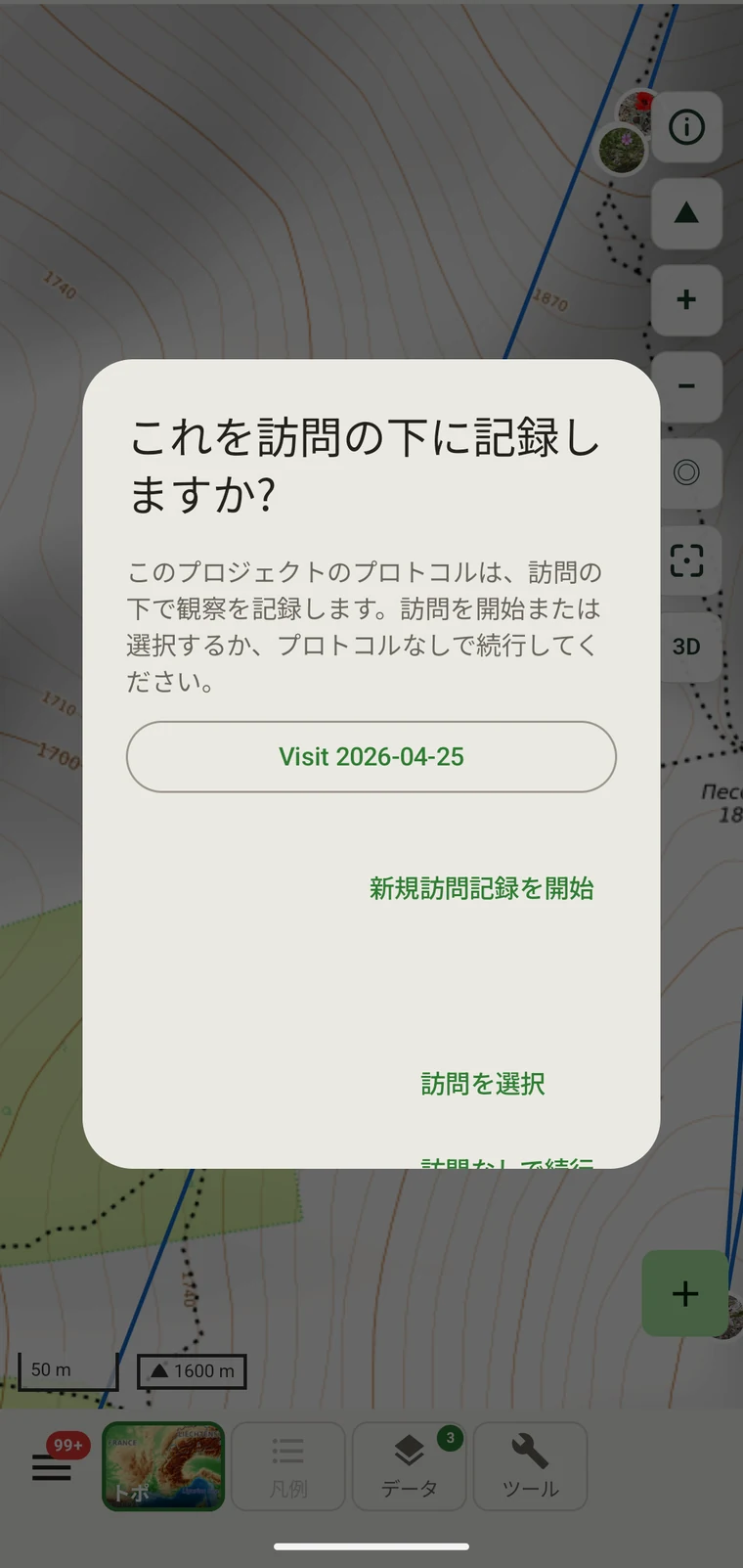
付属するプロトコル
Seven survey protocols ship with the app: Casual / incidental, Site visit, Timed area search and Walking transect under "Other", and Vegetation — Braun-Blanquet, Vegetation — % cover and Vegetation — Drude relevé under "Vegetation". The project created on first run uses Casual / incidental. A project you create later has no protocol until you assign one; until then new records use the casual protocol's core fields.
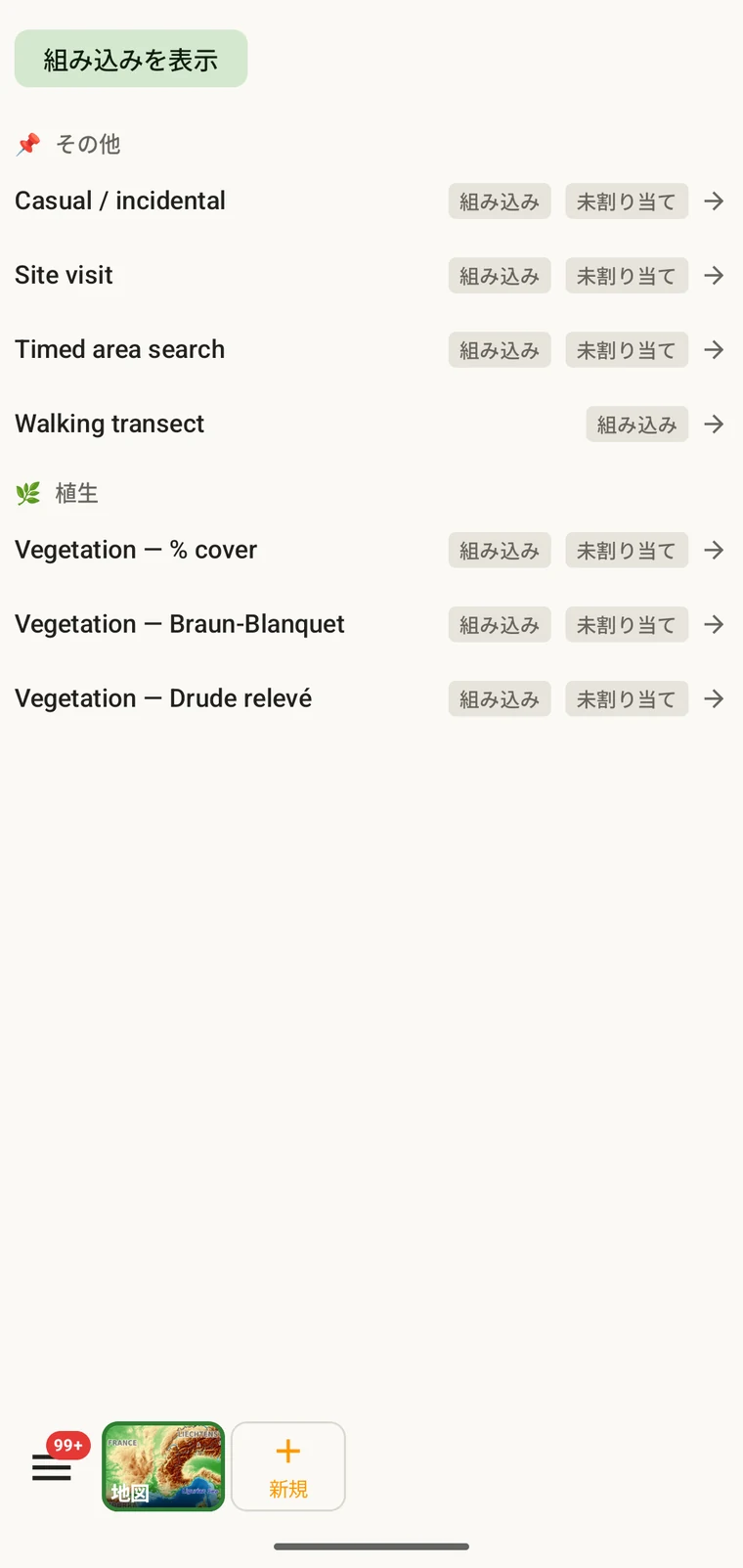
The list on the device is the best place to read each protocol: it shows the full description, the fields it includes and their settings. Open Menu → Protocols and tap a protocol to open it; the Information tab shows its description and settings, the Form builder and Custom fields tabs show its fields.
プロジェクトのプロトコルを選ぶ
One project records under one protocol. Your first project starts with Casual / incidental; later projects start with no protocol and use core fields only. Assign the protocol when you know your method, before records are entered.
- Open Menu → Projects and tap the project.
- In the Survey protocol section tap Assign a protocol (or Change if one is assigned).
- Choose the protocol in the Choose a survey protocol list and tap Done. Assigning copies the protocol's full template — forms and custom fields — into the project.
- The observation form reflects the new protocol from the next record onward. Remove keeps your data and the core fields.
プロジェクトごとに 1 つのプロトコル。 1 つのデータセットに 2 つの異なるフィールド構造を混在させると解析が難しくなるため、プロジェクトは単一のプロトコルによって定義されます。作業に本当に 2 つの異なる手法が必要な場合は、プロジェクトを 2 つ作成し、まとめてエクスポートします。
プロトコルの編集
The seven built-in protocols are read-only. To adapt one, open it in Menu → Protocols and tap Clone; the copy is a custom protocol you can rename and edit. The practical case is a method close to a standard one that adds two or three measurements: clone, rename, add the fields. That way you keep the structure you know and only change what is different about your method.
Editing a protocol does not alter records already entered. Those records retain the field values they were given at the time. Projects that already use the protocol keep their copy until you tap Push to assigned projects in the Protocols Studio; from then on new records in those projects use the updated definition. To change the layout for one project only, use Customize on the project form instead.
Naming your edited protocol. Give it a name that distinguishes it from the original so that anyone reading the exported data can identify which definition was in use. The protocol code travels with every export.
独自に作成する
The Protocols Studio (Menu → Protocols) is where custom protocols are created — tap New protocol and choose From scratch or Clone existing. A protocol has a name, code, description, group, required fields, effort thresholds and vocabulary sets, plus its own forms and custom fields on the Form builder and Custom fields tabs. The field-level work — captions, data types and whether a field appears in list views — is covered in Forms and custom fields.
プロトコルは手法が要求する範囲で単純に保ってください。必須フィールドが多いプロトコルは野外での記録を遅くし、必須フィールドがまったくないプロトコルは、後になって初めて判明する形で不完全になりうるデータセットを生みます。
検証
Required fields are enforced when the record is entered, not discovered at export. Fields the protocol marks required are enforced when the record is saved: the form lists the missing ones and does not save until they are filled.
欠けている値は、現地にいるうちであれば補えます。数か月後にエクスポートを作成した時点では、それはできません。検証はレコードごとに数秒のコストで、後から埋められない欠落を防ぎます。
必須と指定されていないフィールドは空欄のままにできます。エラーになるのではなく、エクスポートでは空のセルとして現れます。
シーズン途中でのプロトコルの変更
シーズン中にプロジェクトへ割り当てたプロトコルを変更できます。既存のレコードは入力時の値をそのまま保持し、新しいプロトコルに対して再検証されることはありません。新しいプロトコルのフィールドセットと必須フィールドの規則が適用されるのは、変更後に入力した新しいレコードだけです。
新しいプロトコルに、以前のプロトコルになかったフィールドが含まれる場合、既存のレコードではエクスポート時にそのフィールドが空欄になります。新しいプロトコルが以前のプロトコルにあったフィールドを含まない場合、そのフィールドの値はデータベースに保持されますが、新しいレコードのフォームには表示されません。
変更を記録に残す。 プロトコルを変更した日付を、プロジェクトの説明か、別の野帳ファイルに記しておきます。変更の前後のレコードをまとめて扱う解析では、フィールド構造の違いを考慮する必要があります。
プロトコルの共有
Protocol and form configuration travel together in the project setup file. Open the project, tap Share, and send the .ecsurvey file to each device; importing it (Menu → Projects → Import) gives that device the same protocol, forms and custom fields. Every recorder on the study then sees an identical form and records under the same required-field rules. Exporting the project to Google Drive also publishes the setup, which other devices receive with Download from Drive + merge…. See Forms and custom fields and Google Drive collaboration.