
数据
浏览您的数据
Records live in an ordinary database on the device. The lists behave like a data grid — you can inspect and correct your own observations without a round trip to a server. Column choice and filtering are available on every list, sorting by column header on a tablet, and every row opens directly into the record's edit form.
这些列表
Five lists cover the records you will check most often.
| 列表 | 它包含什么 |
|---|---|
| 观察记录 | 项目中记录的每一条分类单元出现记录,附带其表单字段、位置、时间戳和附加的照片 |
| 地点 | 用作考察和观察记录空间锚点的命名地点 |
| 考察 | 把在一个地点、一次过程中所做的观察记录归为一组的调查事件;参见记录观察 |
| 分类单元 | The species list for this project — the taxa actually recorded — with a switch to browse the full reference taxonomy |
| 文件 | Photos and attachments across the whole project, shown as a grid or gallery |
观察记录列表
The observation list is the main working view for checking what was recorded. On a tablet, tap a column header to sort by it and tap again to reverse the order. Tap any row to open the observation's detail form, where you can correct any field and save.
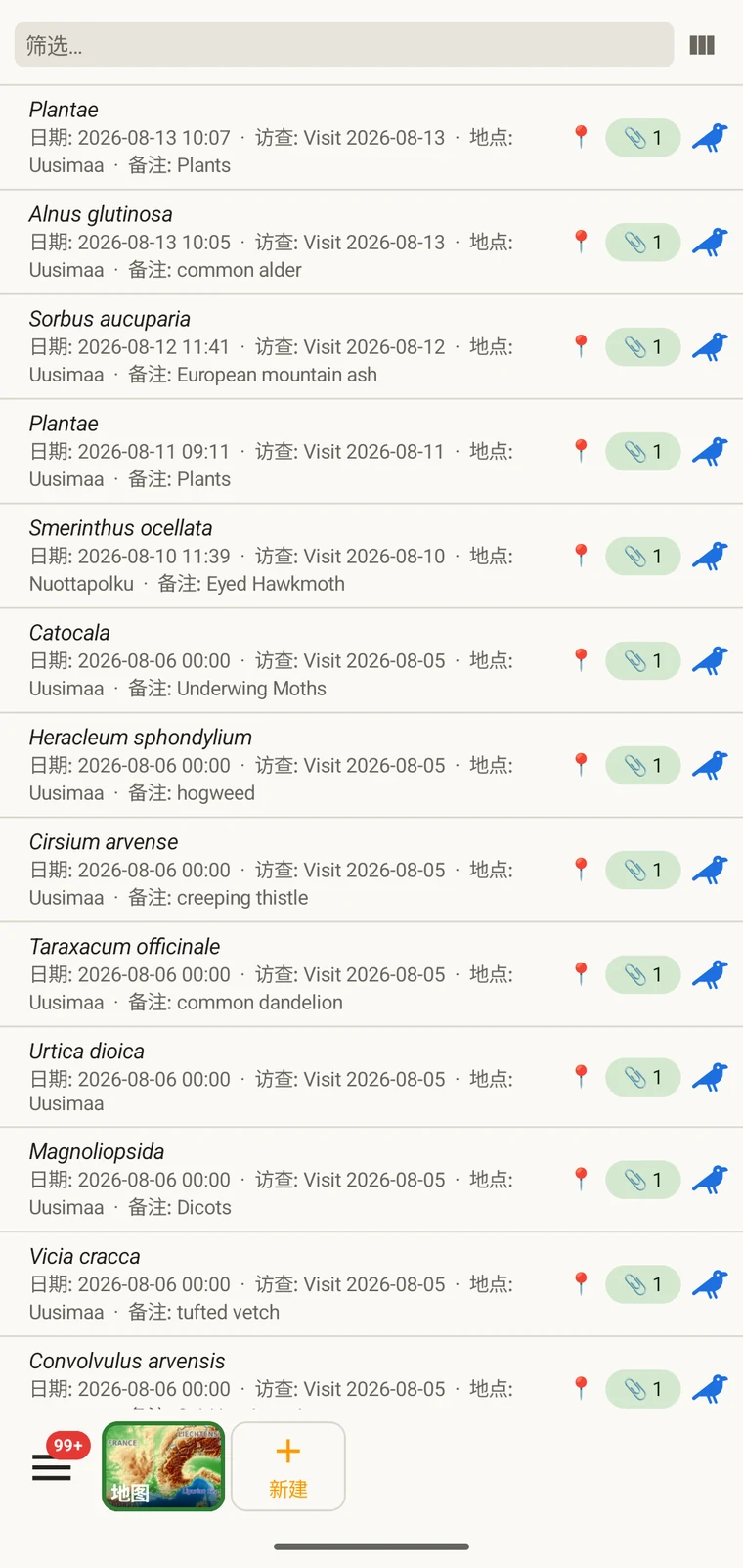
The list always shows the project's complete set of observations. On a tablet, use sorting to spot outliers — sorting by date surfaces any records with an implausible timestamp, and sorting by taxon groups occurrences of the same species so you can compare their field values.
选择列
列选择器让您选择列表中显示哪些字段。点按列选择器图标即可打开。
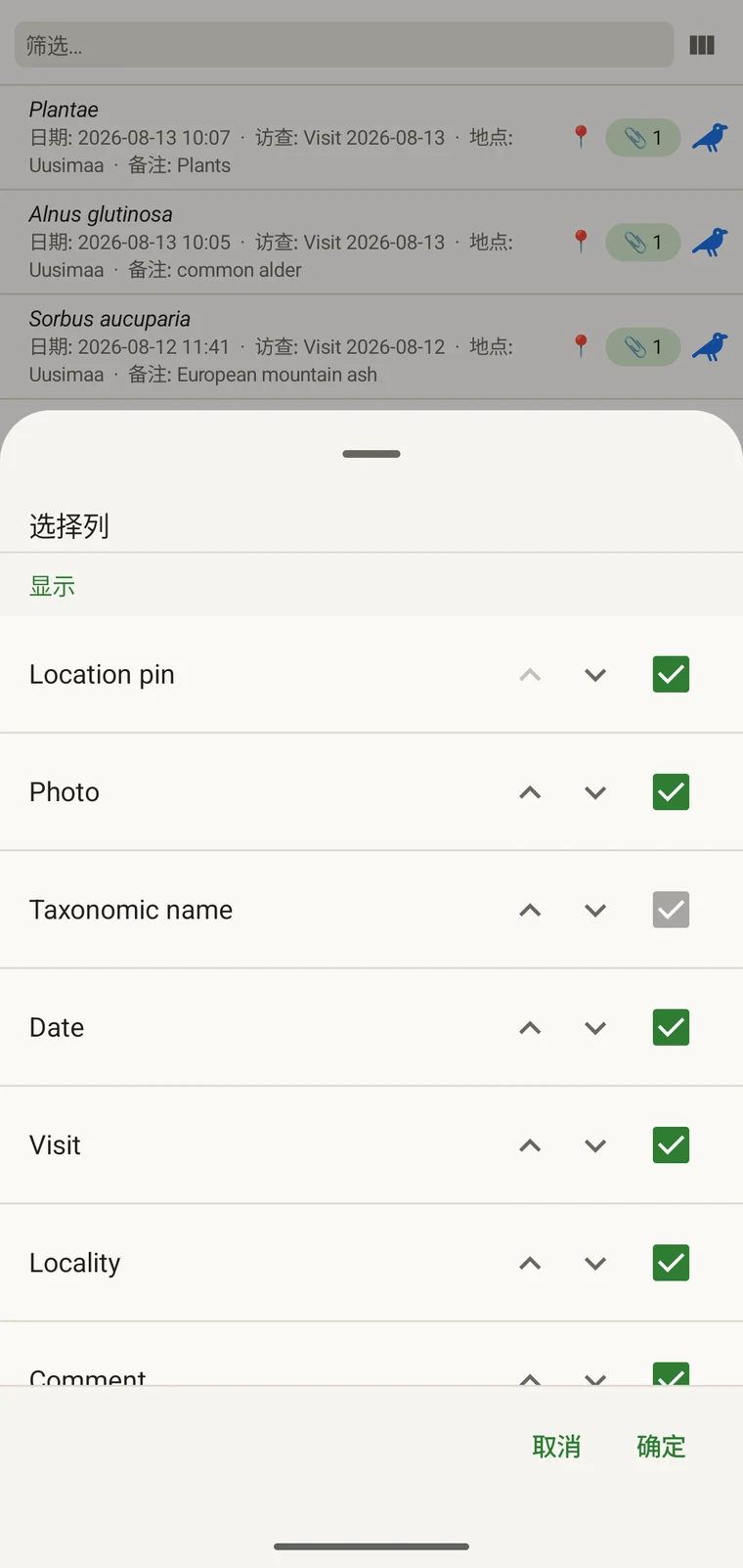
Every custom field appears in the picker; Show in list only decides whether it is on by default (see Forms and custom fields). A practical approach: put the two or three fields you are checking for errors into the list so a visual scan catches them without opening individual records. If you are checking whether abundance counts were filled in, add that column; if you are verifying that the observer name is consistent, add that one instead.
筛选
Type in the filter box above the list to narrow it. On a phone one box matches your text against every column shown in the list — taxon, date, visit, locality, comment and any custom column you have added. On a tablet each column has its own filter box under the header, and the boxes combine: typing in two columns returns only rows that match both.
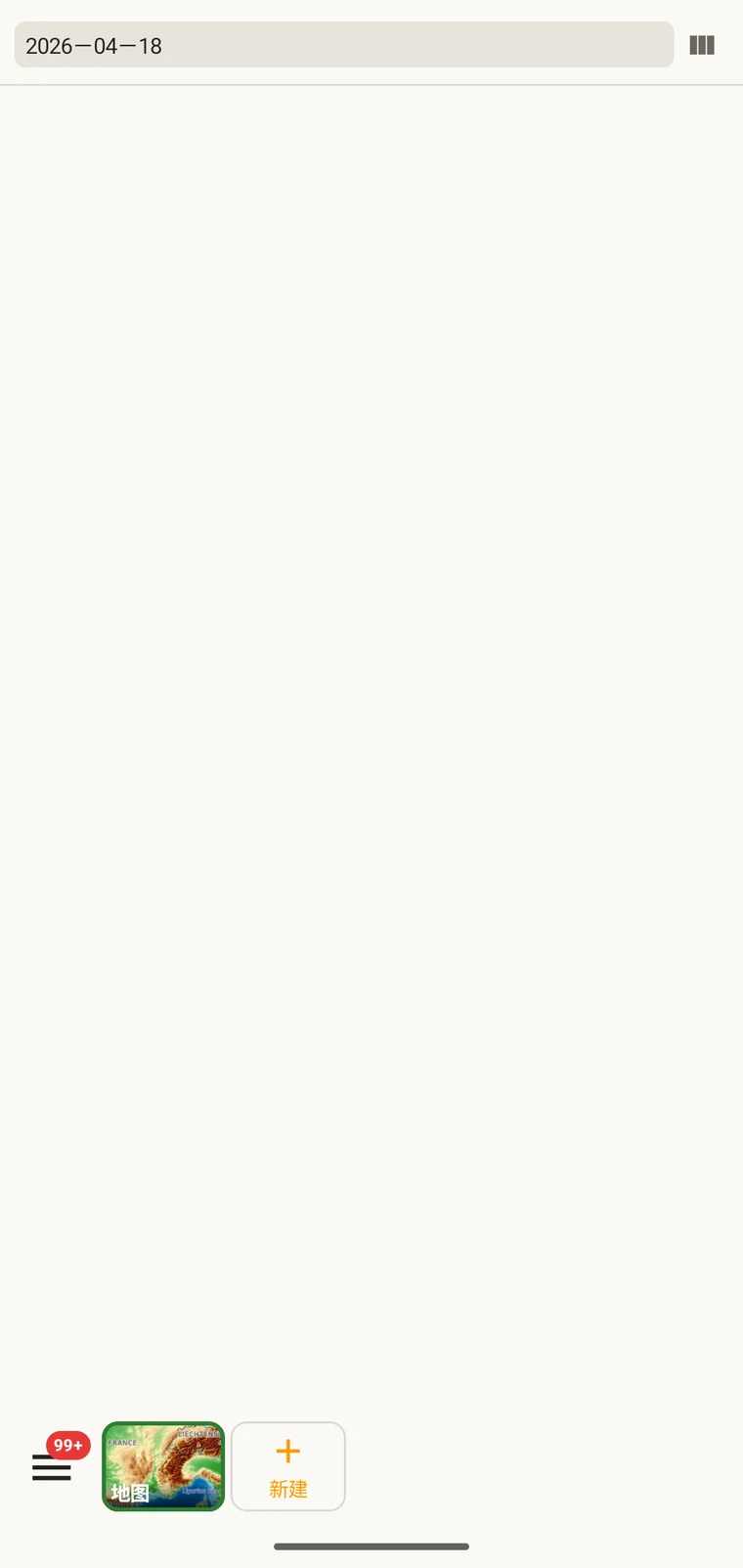
Example — everything recorded on one date. Type the date, for example 2026-04-18, into the filter box. Every observation from that day remains; clear the box to see all rows again.
Filtering matches text that is present. To find records where a field was left blank, add that field as a column and scan the list, or sort by that column on a tablet so the empty cells group together.
考察与地点
考察列表和地点列表让您可以脱离观察记录本身,单独查看项目的空间与时间结构。
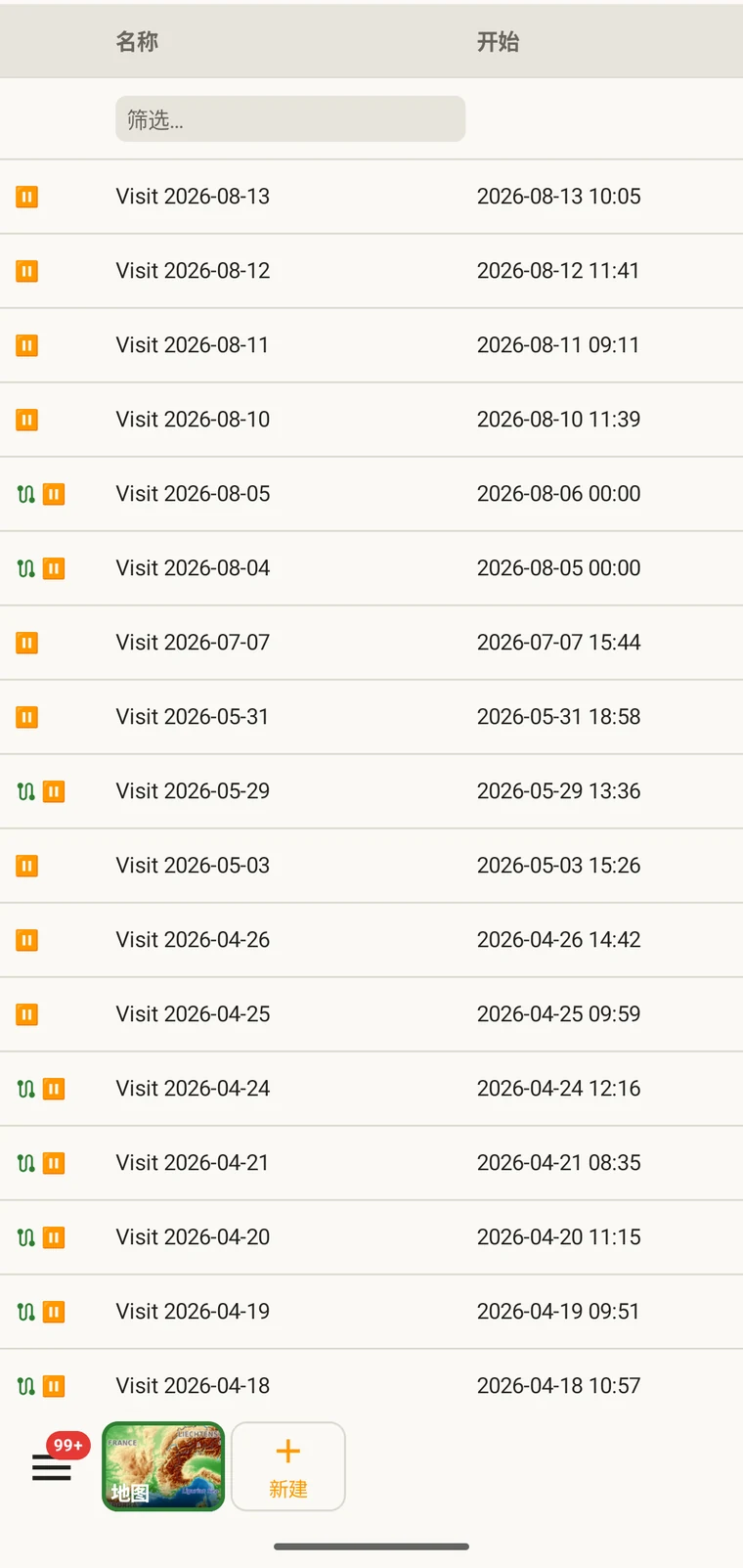
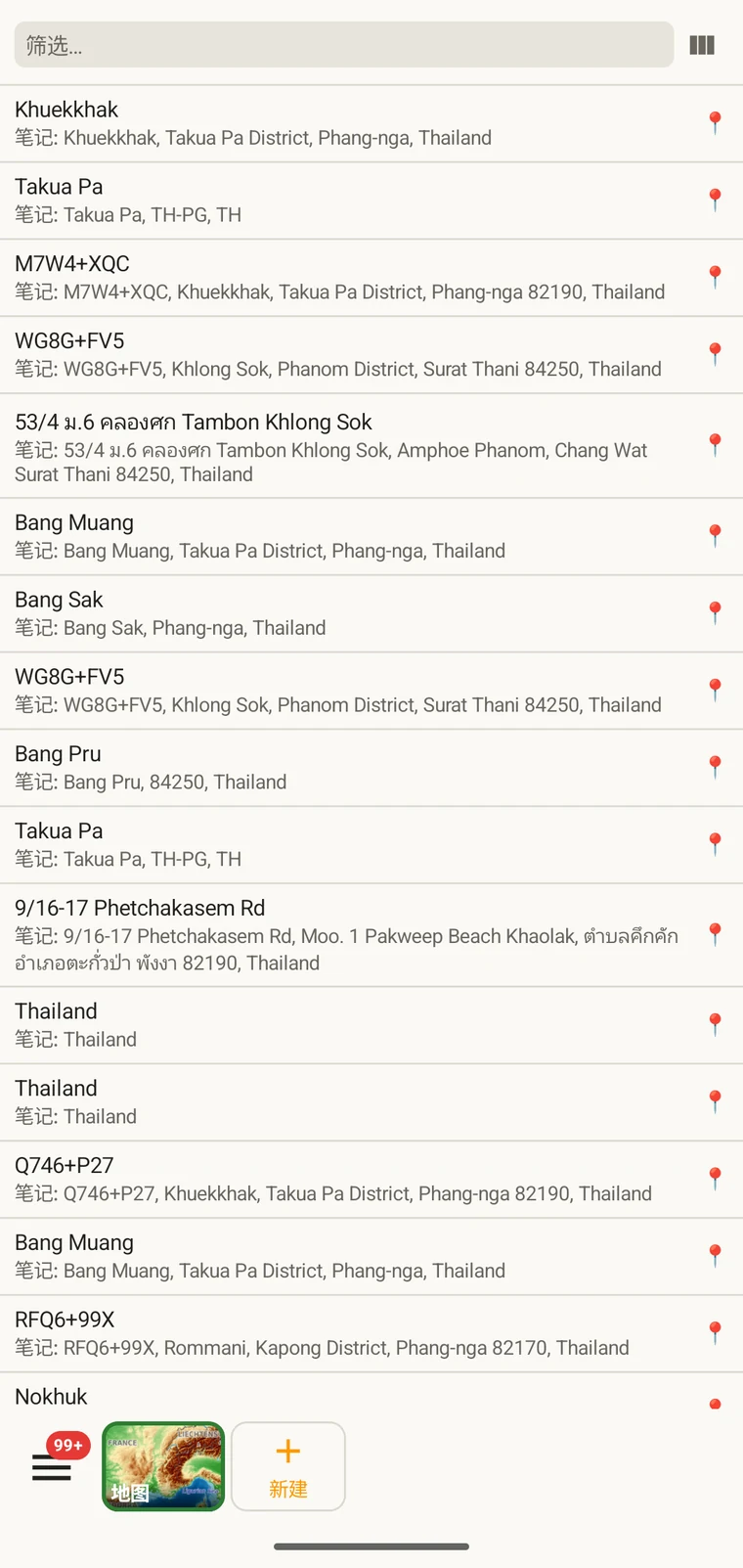
A visit is the survey event that connects a locality to a set of observations made during one session. Opening a visit from this list shows which observations were recorded under it. The localities list shows every named place in the project; tapping one opens its form so you can check or correct its name and position. Both lists filter and open to their edit forms in the same way as the observation list. See Recording observations for how visits and localities are created in the field.
分类单元
The taxa list opens on My species — the taxa recorded in the project. Switch to All names to browse the downloaded Catalogue of Life names.
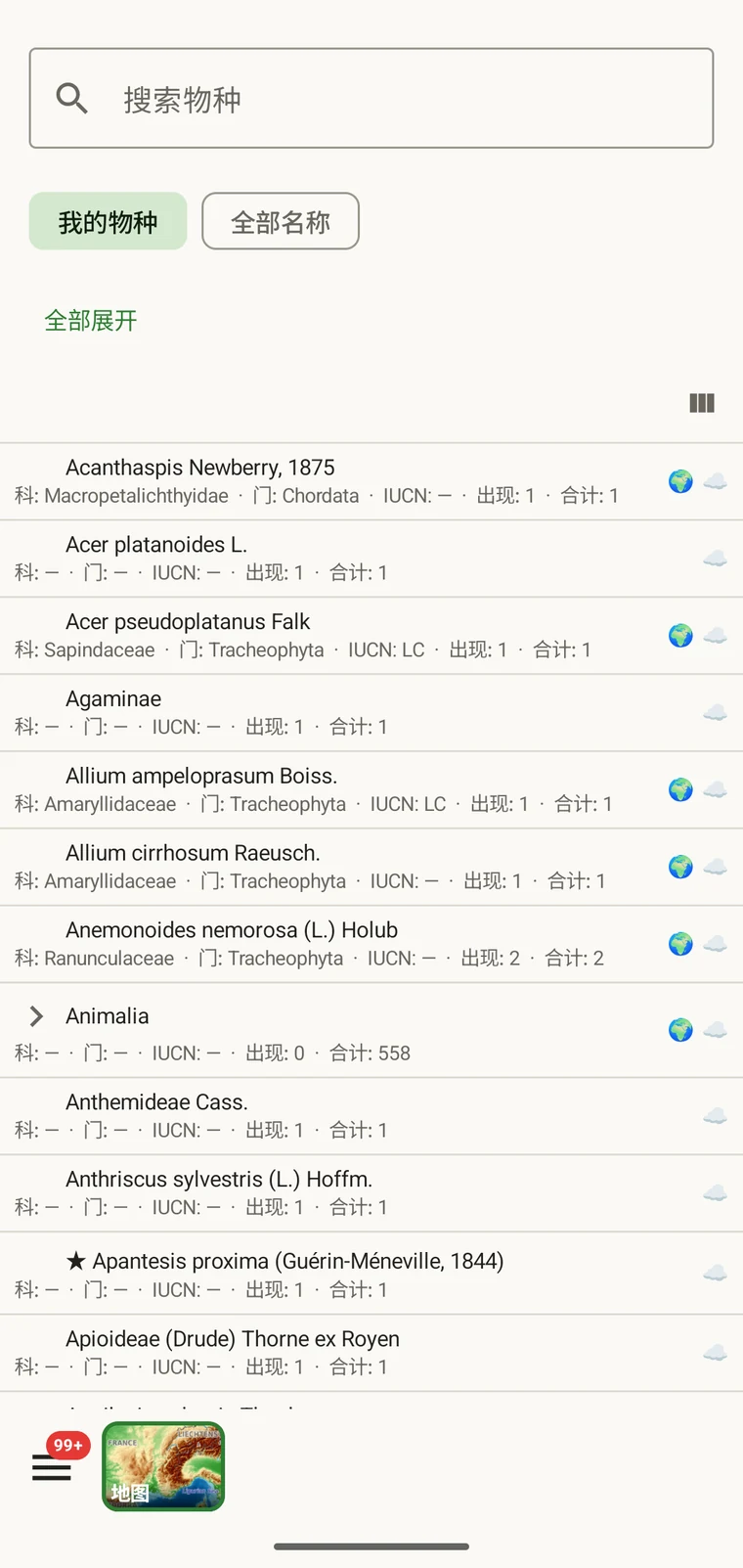
My species is the useful view before export, because it is the project's working species list. It is where you check for spelling inconsistencies and near-duplicate names that arose from entering the same species differently across sessions — for example Tulipa greigii entered once with a capital G, or a vernacular name used as a taxon name on one record. The full reference taxonomy is also available through the search on the observation entry form (see Recording observations).
照片
文件视图把项目中附加的每一张图像集中显示在一个网格里。
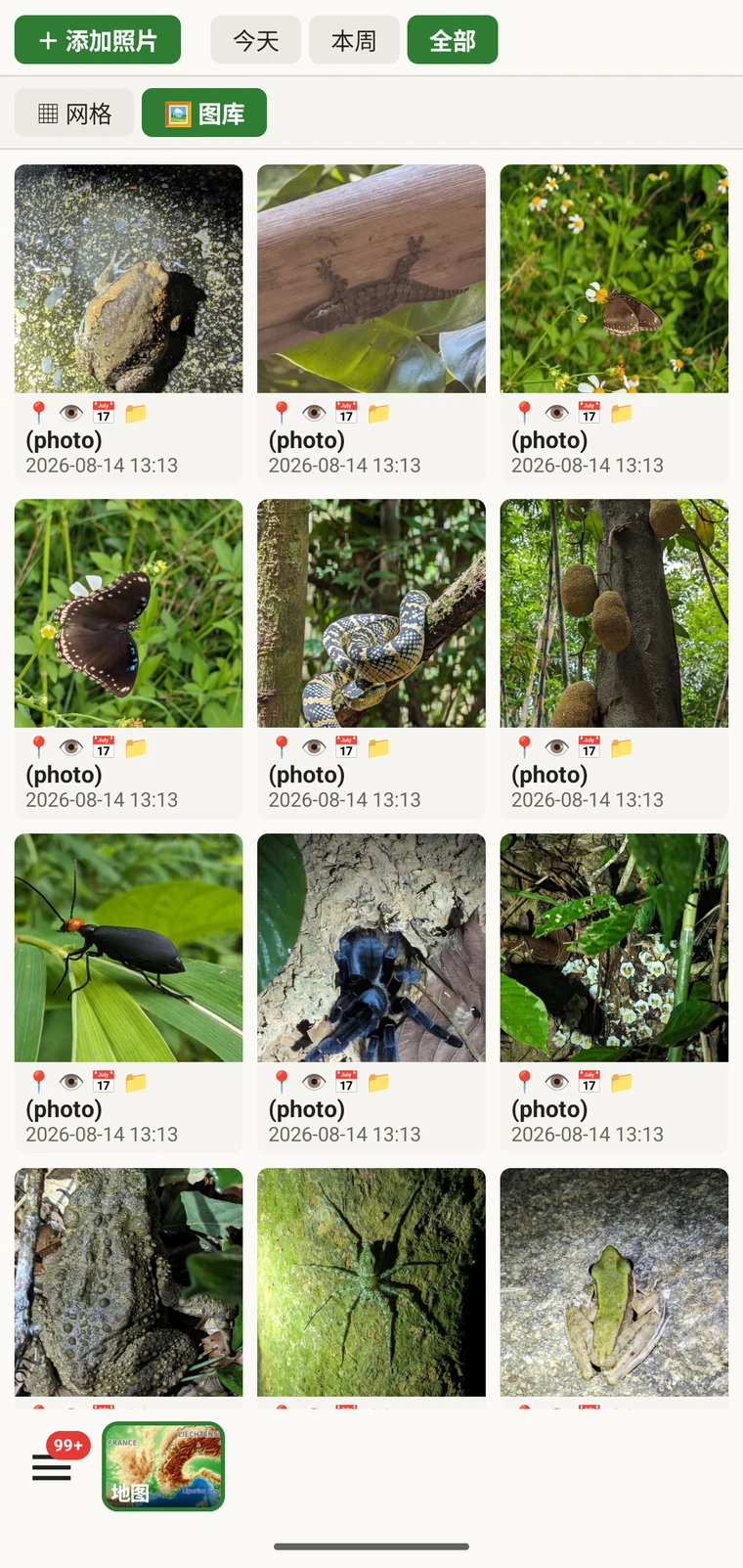
它的实际用处是确认照片确实附加到了您以为的那条记录上。野外记录时很容易在照片附加完成之前就拍完走人,或者把照片附加到了错误的观察记录上。照片库给出数量和目视检查:如果您记录了十条观察,而照片库只显示七张照片,就有三条记录没有照片。点按任意照片即可跳转到它所属的记录。
导出前修正数据
导出之前把这些列表快速过一遍,就能发现最常见的野外数据问题。
- 打开分类单元列表,查看有没有近似重复的名称——同一物种拼写不同,或使用了不同的分类阶元。修正有问题的观察记录,让分类单元名称在全项目中保持一致。
- Open the observation list, add the field you consider required in practice to the visible columns, then scan or sort that column for empty cells. Open each flagged record and fill in the missing value.
- Switch to the map and switch the basemap to Outline (see Map tools) so your own points are clearly visible against a plain background. Positions that landed in water or in the wrong valley stand out immediately. Tap to open and move the offending record.
- 查看照片库,确认图像数量符合预期。打开任何看起来归属错误的照片并重新指派。
- 当数据看起来无误时,前往导出格式。
数据存储在何处
All records are stored in a single SQLite database on the device. No account is required to create or read data, and your records leave the device only when you export them or use a connected service (Google Drive, Dropbox, Zenodo, iNaturalist). Map tiles, weather, GBIF look-ups and AI identification are fetched from their providers when you use those features. Recording works entirely offline from the moment you create a project.
A full SQLite backup is one of the twelve export formats. It produces a .db file that is a complete copy of the app's database — every project, every table as it sits on disk — readable by any SQLite tool. It is for analysis and archiving, not for restoring into the app; for device-to-device backup use Backup & Restore under Menu → Admin → Account, which backs the database up to Google Drive. See Export formats for all twelve options.