
Data
Google Drive collaboration
The app writes the current project into a folder in your own Google Drive: the project setup, the records you made, the photos, and a merged copy of everyone's data. Anybody pointed at that same folder downloads it and merges the other people's records into their own device. A survey team can therefore work on one dataset without an EarthCape account or a server of ours in between.
A team shares one dataset without anybody buying anything. One person configures the project, exports it to a shared Drive folder, and the rest of the team downloads and merges. Everyone records offline, exports when they have signal, and merges whenever they want the full picture. This is the reason the app is usable by a team and not only by a lone recorder.
What gets written to the folder
The Google Drive card in the Integrations screen states what the export contains, verbatim:
Export the current project to a cloud folder (setup + your contributions, photos and an analysis-ready merge). Select a project first.
Those are four separate things, and each is there for a reason.
| Written to the folder | Why it is there |
|---|---|
| Project setup | The protocol the project records under, the detail form layouts, and the custom fields you defined. It travels so that a second device can adopt the same project rather than a similar-looking one. Without it, two people would be typing into two different forms and the columns would not line up. See Survey protocols and Forms and custom fields. |
| Your contributions | The records you made on this device — observations, localities, visits and the taxa they reference. Each person exports their own contributions, so the folder accumulates the survey one recorder at a time. |
| Photos | Every image attached to the project, so the folder holds the evidence and not only the rows. Photos are the largest part of the upload by a wide margin. |
| Analysis-ready merge | A combined copy of the records in the folder, laid out for analysis rather than for the app. It is what you open to read the whole survey in a spreadsheet or a GIS without importing anything back into a device. |
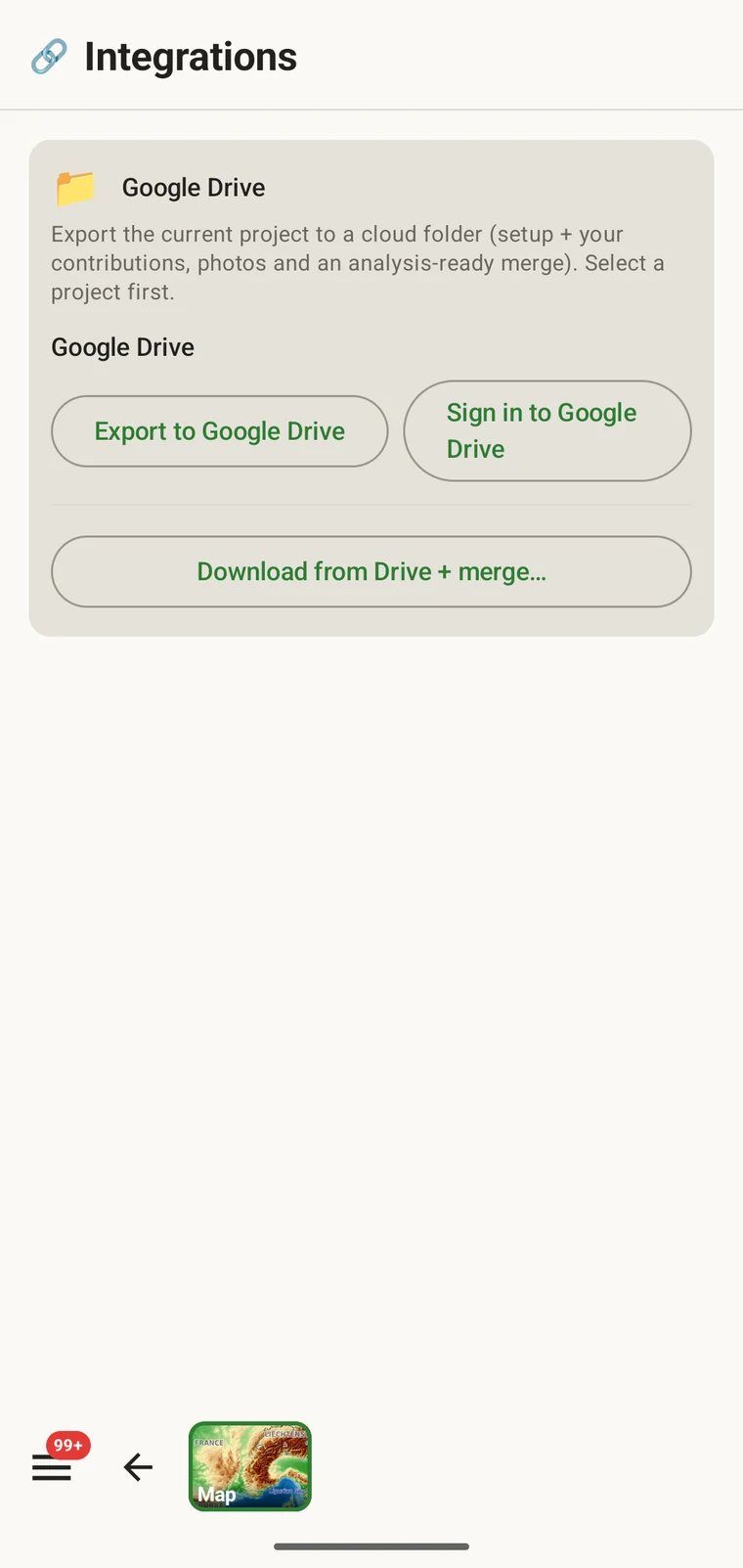
The card carries three buttons, and they are the whole feature:
- Export to Google Drive — writes the current project to the folder.
- Sign in to Google Drive — links the Google account the folder lives in.
- Download from Drive + merge… — pulls the folder down and folds the records it contains into the project on this device.
Connecting your Google account
The app signs in to your own Google account on the device. The files it writes sit in your Drive, under your storage quota and your sharing settings.
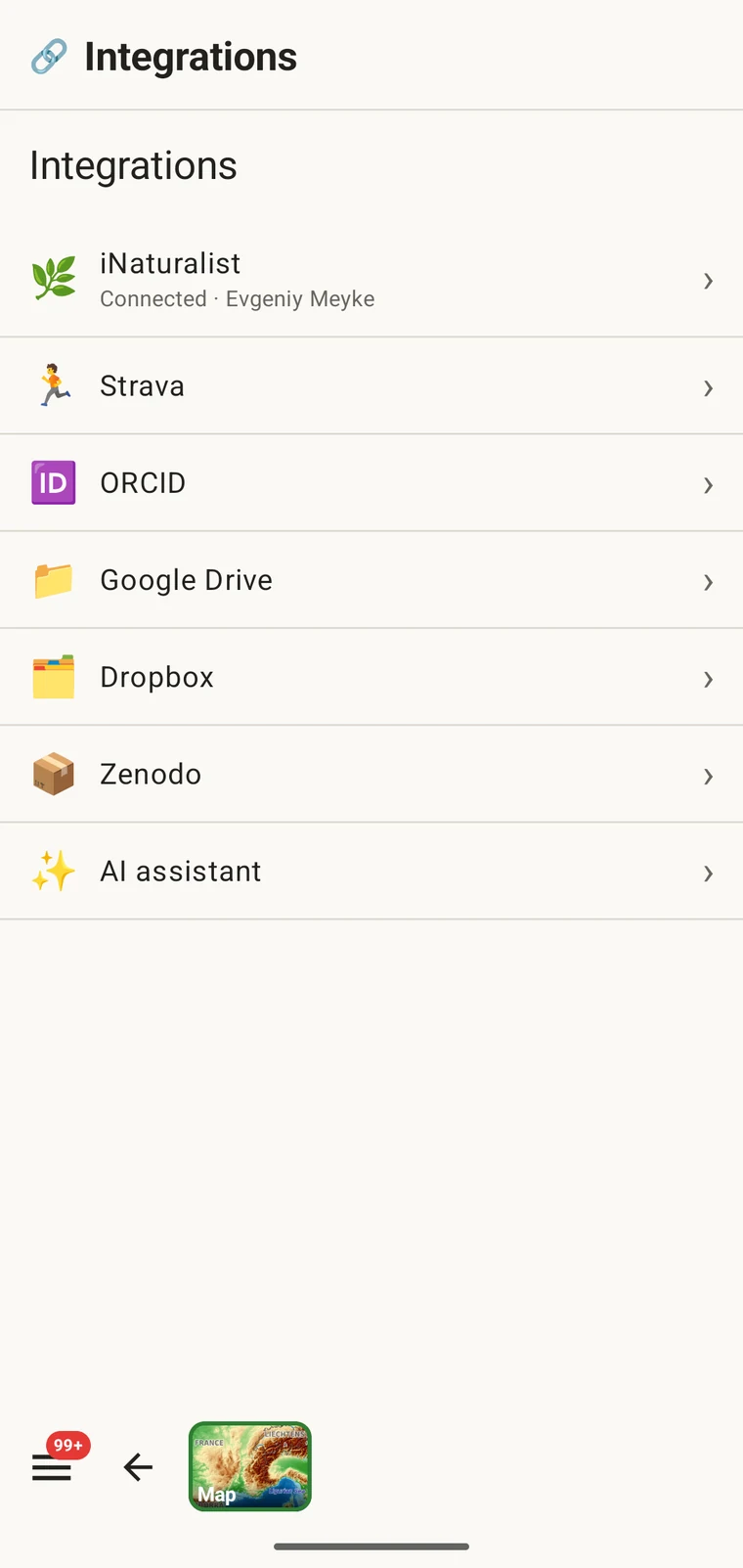
- Open the Integrations screen from the app menu.
- Choose Google Drive in the list.
- Sign in with your Google account through the standard Google sign-in. The Sign in to Google Drive button on the card does the same thing.
- Grant the app access to the folder it will read and write. Nothing is uploaded at this point — signing in only establishes the connection.
Exporting to Drive
- Select the project you want to export. The card says Select a project first because the export acts on the current project and nothing else.
- Open Integrations and the Google Drive card.
- Tap Export to Google Drive.
- Wait for the upload to finish. Setup and records go quickly; the photos determine how long it takes and how much Drive storage the folder consumes.
The export needs a connection, so it is something you do in a vehicle, a field station or a town, not on a ridge. Being offline for a week costs you nothing: your records sit on the device until you have signal, and the export sends the accumulated set in one operation.
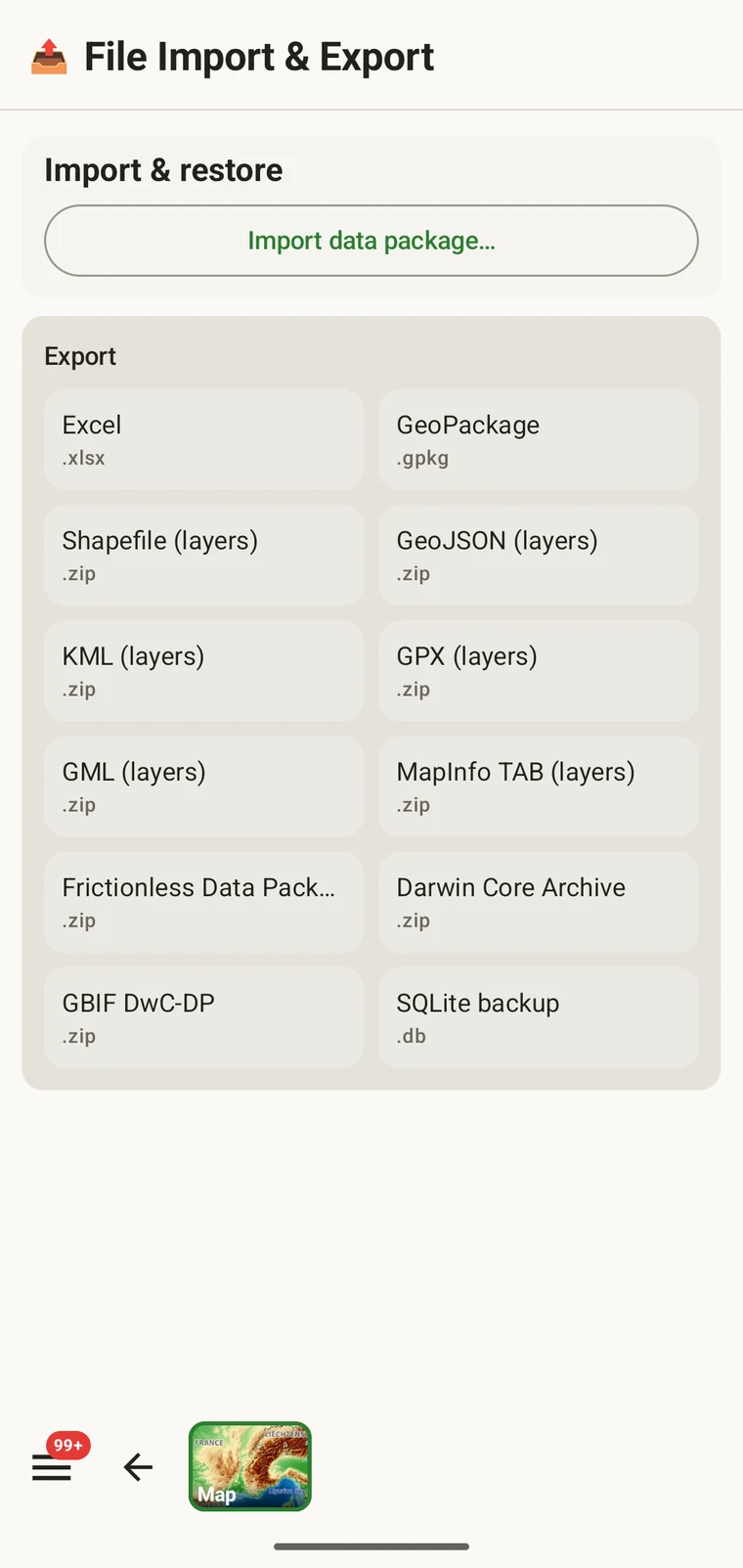
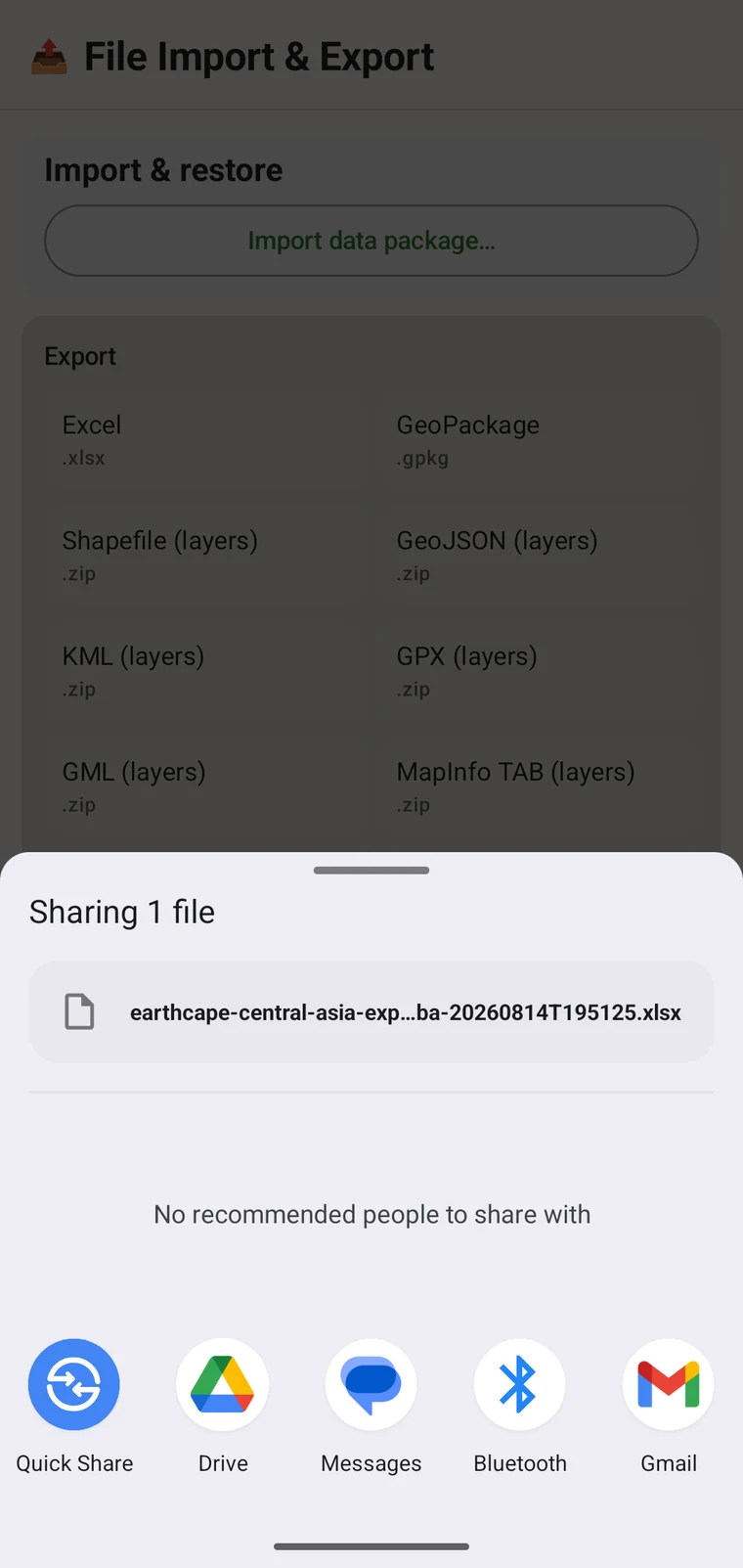
If you need the data off the device before you have signal, use the ordinary export screen and write a file locally — Excel, GeoPackage, Darwin Core Archive or any of the twelve formats — then hand it over by cable, share sheet or memory card and push to Drive later. See Export formats.
Downloading and merging someone else's records
The other half of the exchange is Download from Drive + merge…. It reads the shared folder and brings what other people put there into the project on your device.
- Make sure the folder is shared with the Google account you signed in with. Sharing is done in Google Drive itself, by whoever owns the folder.
- Select the project the folder belongs to.
- Open the Google Drive card and tap Download from Drive + merge….
- Confirm the folder and wait. Again, the photos are the slow part.
- Open the lists and the map to check that the other people's records arrived.
Merging is additive. The records other people exported are folded into your copy of the project and sit beside your own, in the same Observations, Localities, Visits, Taxa and Files lists, drawn on the same map. No existing record is replaced or removed, and no manual reconciliation is required.
After a merge your device holds the whole survey, not your share of it. You can filter and sort the combined records, choose columns, open any record, and browse every photo in the project gallery — see Browsing your data. On the map you can measure between two people's localities and read the elevation profile — see Map tools. All of it works offline afterwards, because the merged data is on the device.
Running a survey team through one folder
The mechanics above become a working method when the team agrees on when to export and when to merge. This is the arrangement to hand to a field team.
Phase 1 — before the season
- One person sets the project up: choose or write the protocol, lay out the detail forms, and define the custom fields the survey needs. See Survey protocols and Forms and custom fields.
- That person creates the folder in Drive, selects the project, and taps Export to Google Drive.
- They share the folder with everyone on the team, using Google Drive's own sharing.
- Everyone else runs Download from Drive + merge… once, before going out. Every device now has the same protocol, the same forms and the same custom fields, so every record collected in the season fits the same table.
Do this while the team is still together and on a connection. A device that starts the season with the wrong form layout produces records you will spend the winter repairing.
Phase 2 — during the season
- Everybody records offline, independently, with no connection and no coordination.
- Whoever reaches signal exports their contributions to the folder. Nobody has to wait for anybody else, and two people exporting on the same evening do not interfere with one another.
- Anybody who wants the full picture — the survey lead reviewing coverage, or a recorder wanting to see where the others have been — runs the download and merge.
A merge is worth doing mid-season even if nobody strictly needs it, because it is when you find out that one device is recording into the wrong protocol or that a custom field is being filled in two different ways.
Phase 3 — after the season
- Everyone runs a final export, so the folder holds every contribution.
- One nominated person downloads and merges everything onto one device.
- They check the data: filter for blank required fields, sort by date to find gaps, look for records sitting at an implausible position, review the photo gallery. See Browsing your data.
- They produce the final export in whatever format the destination wants — Excel for a co-author, GeoPackage or Shapefile for a GIS, Darwin Core Archive or GBIF DwC-DP for a data publisher, Frictionless Data Package for a repository. See Export formats.
Rules that keep a shared folder tidy
Nothing below is enforced by the app. They are the conventions that keep the arrangement working across a season.
| Convention | Why |
|---|---|
| One folder per project | Agree it before anybody records. A folder that holds two projects is ambiguous to everyone who opens it later, and it makes the merge harder to reason about. |
| Agree the custom-field Keys first | The Key you type when adding a custom field becomes the column name in the exports. Two recorders inventing their own keys for the same measurement produce two columns that have to be merged by hand afterwards. Settle the keys once, at setup, and distribute them with the project. See Forms and custom fields. |
| Export on a fixed rhythm | End of each field day, or every time the team reaches signal. A regular rhythm keeps every merge small and keeps the loss window short if a device is dropped in a river. |
| Name who produces the final export | One person, agreed in advance. Two people exporting a final dataset from two partial merges is the most common way a survey ends up with two versions of its results. |
| Use a durable Drive account | Put the folder in an account that outlives the project — an institutional or a shared project account — rather than a student's or a seasonal assistant's personal account that may be closed when they leave. |
| Watch the storage | The photos dominate the folder size, and the folder counts against the owner's Drive quota. Check the quota before a large season rather than during it. |
What this is not
The Drive arrangement has clear limits:
- It is not live sync. Nothing happens in the background. Somebody taps Export to Google Drive, and somebody else taps Download from Drive + merge…. Between those two taps the two devices know nothing about each other.
- There is no conflict resolution. The merge brings records in beside your own. If two people recorded the same thing twice, you will have both, and you resolve it in the data lists like any other duplicate.
- There are no notifications. Nobody is told that a new export has landed in the folder. That is what the agreed rhythm in the previous section replaces.
- There is no permissions model of ours. Who can read and write the folder is Google Drive's sharing, exactly as it would be for any other folder. The app adds nothing on top of it.
Dropbox and Zenodo
The same Integrations screen offers two other cloud destinations. Dropbox works as a shared working folder in the same way as Drive, for teams already organised around it. Zenodo is for the other end of a project: an archived, citable deposit of the finished dataset once the survey is over. Both are covered with the rest of the destinations in Export formats.
Privacy
The folder is in your own cloud account. The exported files belong to you, sit under your storage and are governed by your sharing settings, and you can delete them without asking anyone. EarthCape does not hold a copy of your project, and nothing leaves the device unless you export it.