
Integrations
iNaturalist
Connect your iNaturalist account to work with your own observations inside the project you are recording. Import them into the project, and send records you make in EarthCape back to iNaturalist — the ones you pick, when you pick them.
Connecting your account
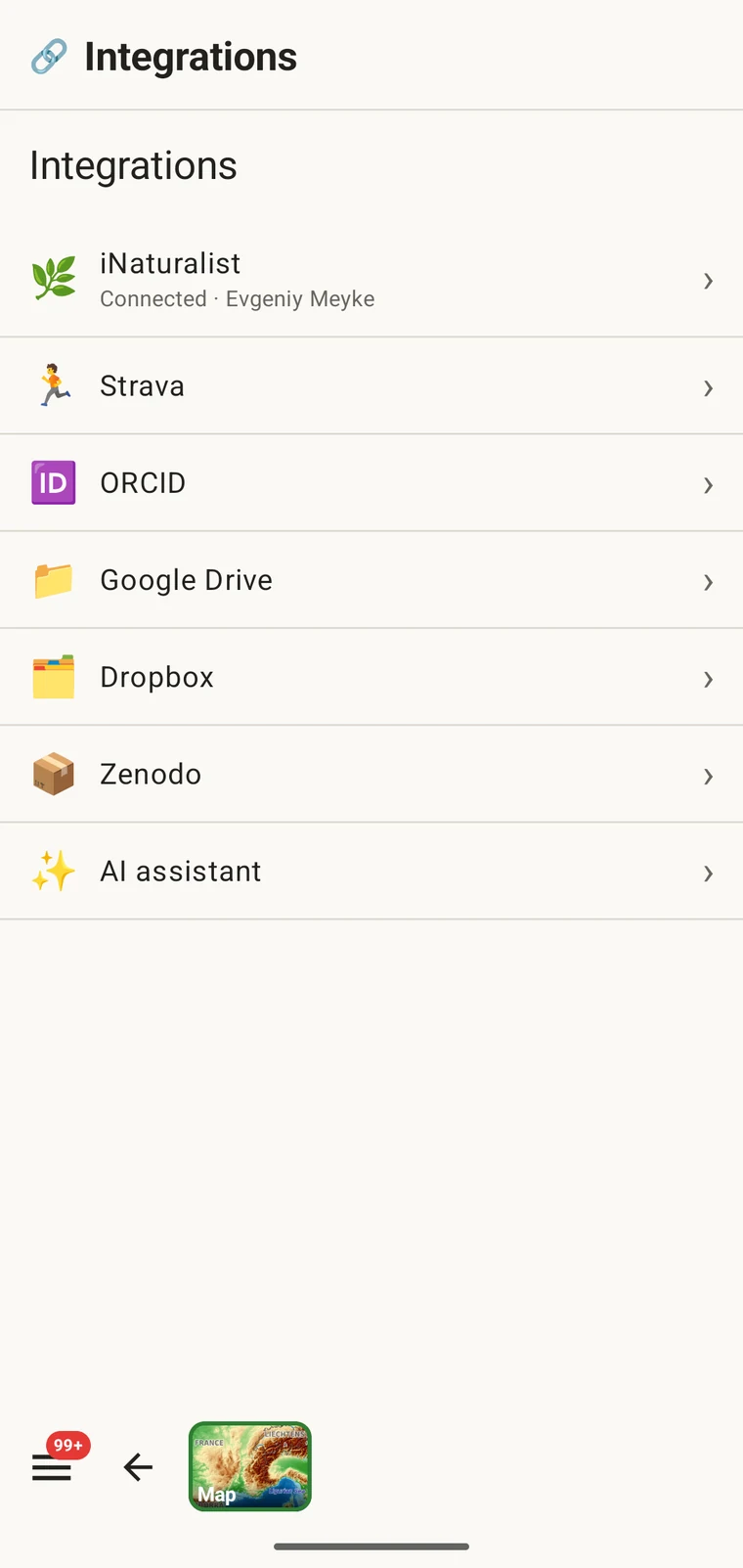
The connection is made from the Integrations screen under Menu → Admin → Integrations, which lists every external service the app can work with. You sign in with your existing iNaturalist credentials; EarthCape does not store your iNaturalist password.
- Open Menu → Admin → Integrations.
- Tap the iNaturalist row, then Connect.
- Sign in on the iNaturalist page that opens in your browser.
- Authorise EarthCape to access your observations.
Authentication. EarthCape authenticates against iNaturalist using OAuth, the same mechanism used by other third-party iNaturalist clients. Your password goes to iNaturalist, not to EarthCape. You can revoke the authorisation from your iNaturalist account settings at any time, independently of removing the connection from this app.
The hub
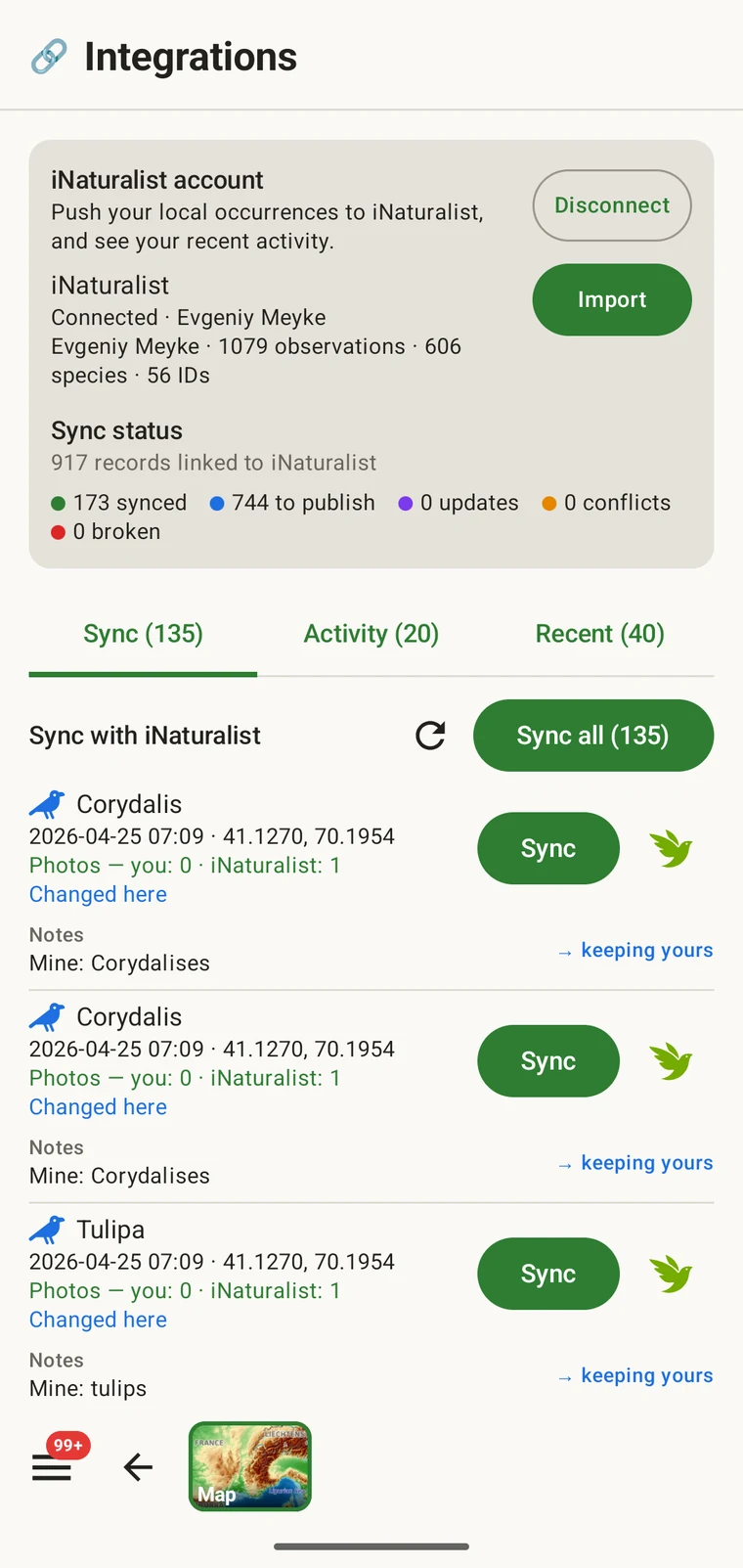
Once you are connected, opening the iNaturalist row takes you to the hub: the single screen from which everything iNaturalist-related is reached. It shows the connected account, a summary of how many records are linked to iNaturalist and what state they are in, and three tabs — Sync, Activity and Recent — with the import function alongside them.
Your activity
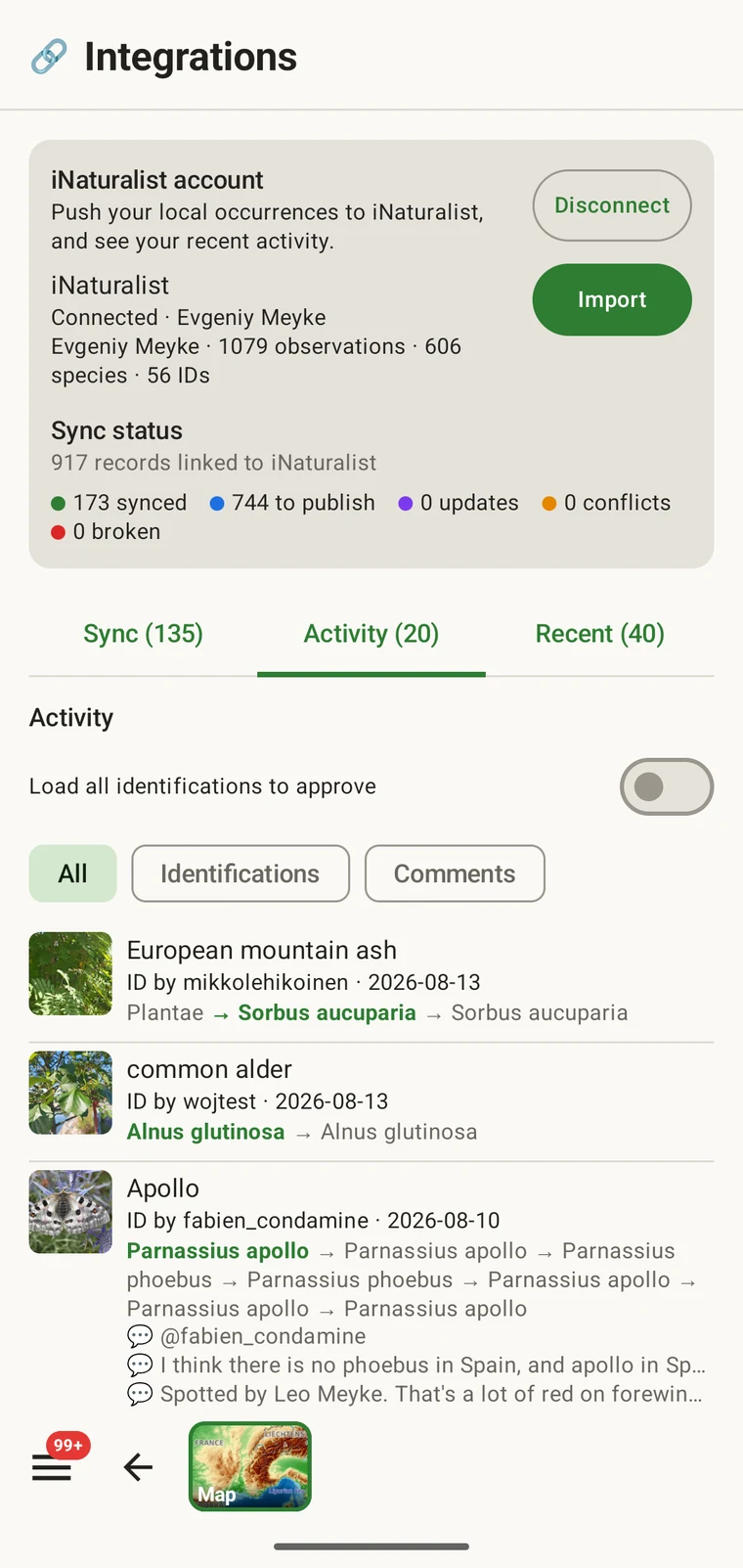
The activity view shows your iNaturalist activity feed — the stream of events on your own observations and identifications. It is useful in the field because it lets you check notifications and recent identifications without leaving the recording app to open a browser. You can mark items seen and agree with an identification from the list.
Recent observations and identifications
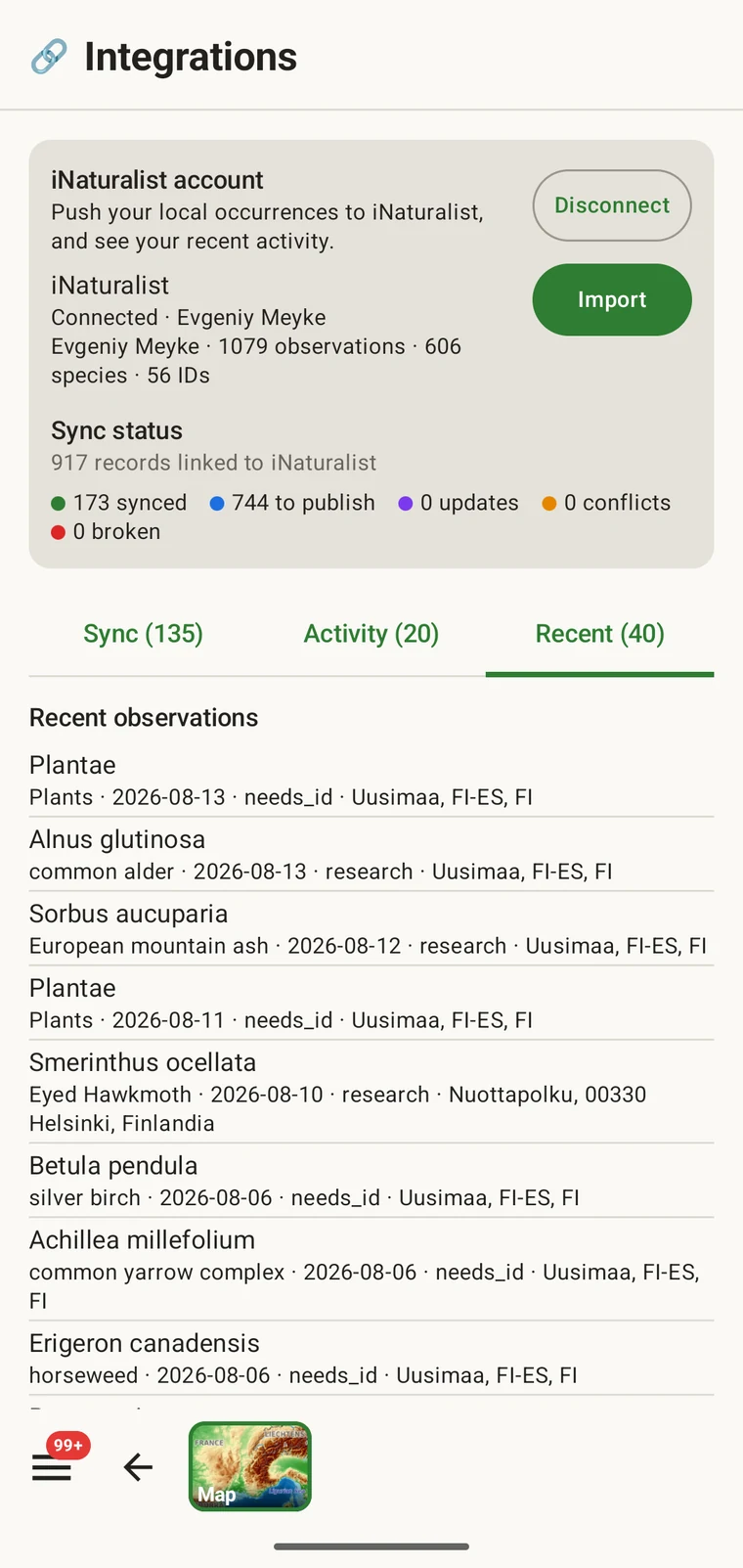
The recent view shows your own most recent iNaturalist observations and identifications, read from the iNaturalist API onto the device. This gives you a quick reference to what you have been recording on iNaturalist, alongside the records you are making in the current project.
Importing observations into a project
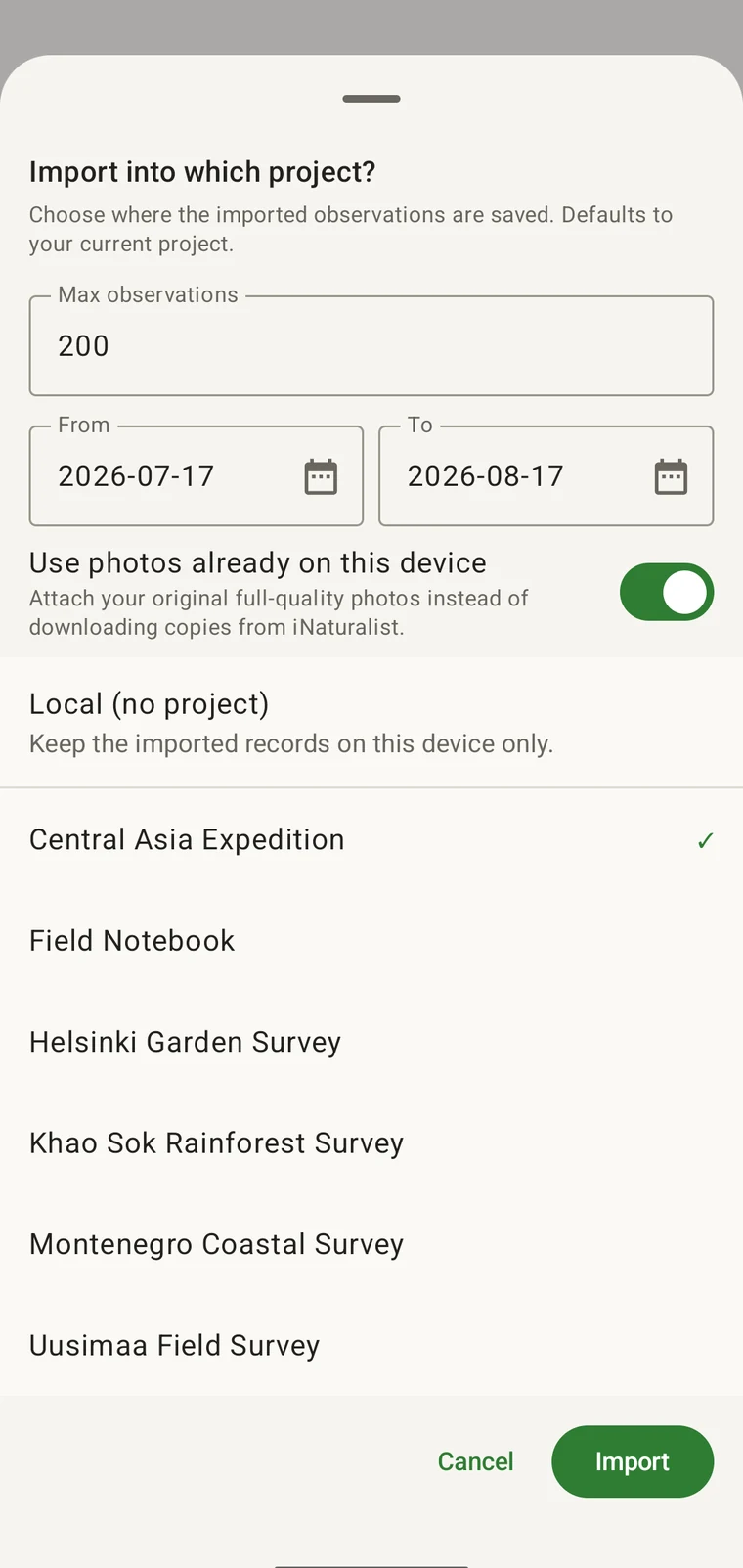
Import brings observations from your iNaturalist account into an EarthCape project as ordinary records. You choose the project they land in, the date range to draw from and how many to take. Taxon, date, position, notes and photos are preserved from the iNaturalist observation. Once imported, the records are on the device.
An iNaturalist record made at the same site on the same day belongs in the same dataset as the survey records. Without import, the two sets remain in separate systems and have to be reconciled later. After import, the iNaturalist records appear in the observations list (see Browsing your data), they appear on the map (see Map tools), and they leave in every export format (see Export formats).
- Open the iNaturalist hub from Menu → Admin → Integrations.
- Choose Import.
- Set the date range and the maximum number of observations to bring in.
- Choose whether photos come from this device or are downloaded from iNaturalist.
- Pick the project the records should go into (or Local (no project)), then confirm with Import.
| Field | What is preserved on import |
|---|---|
| Taxon | The taxon name from the iNaturalist observation, matched against the on-device taxonomy |
| Date | The observation date recorded in iNaturalist |
| Position | The latitude and longitude, with the positional accuracy where iNaturalist has it |
| Notes | The observation description, kept as the record's notes |
| Geoprivacy | Open, obscured or private, carried across as recorded on iNaturalist |
| Photos | Either the full-quality originals already on your device, or copies downloaded from iNaturalist, depending on the switch |
| Protocol form | The project's protocol form is attached, with any fields that were not recorded on iNaturalist left empty |
What happens after import
Imported records behave like any other record in the project. They carry the project's protocol form (see Survey protocols), so you can open them and fill in any fields that were not part of the original iNaturalist observation. They appear in the observations list and on the map alongside records entered directly in the app. They are included in every export format, including Darwin Core Archive (see Export formats).
An imported record keeps a link to the iNaturalist observation it came from, which is what later lets the app tell you whether the two have drifted apart. Nothing moves on its own: edits you make on the device stay there, and edits made on iNaturalist stay there, until you sync the record yourself.
Sending records to iNaturalist
The Sync tab lists the records that can go to your iNaturalist account and the state each one is in. Nothing is uploaded on its own. You send one record with the Sync button beside it, or send the listed batch with Sync all (N). Either way you choose what goes.
Taxon, date, coordinates, geoprivacy, notes and photos are sent. A record that has not been to iNaturalist before is created there; one that has been sent before is updated in place, so syncing the same record again does not create a duplicate.
| State | What it means |
|---|---|
| In sync | The device copy and the iNaturalist copy match |
| Changed here | You edited the record on the device since it was last synced |
| Changed on iNaturalist | The observation was edited on iNaturalist since it was last synced |
| Conflict — choose a side | Both copies changed since the last sync, so the app asks which side to keep |
| Link broken | The linked observation can no longer be found on iNaturalist |
On a conflict the record expands to show the fields that differ — taxon, date, coordinates, geoprivacy and notes — with a Mine or iNat choice for each one. Nothing is written to either side until you have chosen and synced.
Limits
This integration works with your own observations on your connected iNaturalist account, in both directions: import from it, and sync records back to it. It does not browse other people's nearby iNaturalist observations.
Importing and syncing both need a connection at the moment you do them. Everything already on the device stays available and fully usable offline (see Offline maps); records not yet synced are listed in the Sync tab and go only when you tap Sync with a connection.
If you want the published occurrence records for the area around your site — across all iNaturalist contributors and other data providers — rather than your own personal observations, that is a different function: see GBIF nearby species.
Privacy
You sign in to your own iNaturalist account; EarthCape does not store your password. The connection can be removed from the Integrations screen at any time, which ends the app's access to your iNaturalist account. Observations that have already been imported remain on the device as ordinary records; they are not deleted when you disconnect. If you want to remove them, delete them from the observations list.
Imported records live on your device like any other project record, under the same local storage and export controls as the rest of your data. Nothing goes to iNaturalist unless you sync it, and you choose record by record what is sent.