
Intégrations
Espèces GBIF à proximité
The app queries the published GBIF occurrence record around your current position and returns the taxa that have been recorded there, arranged in a taxonomic tree you can expand level by level and download from. It shows which groups are represented, how many distinct species (or higher taxa, at the detail level you choose) each group holds in the published record, and which names belong to those groups, before you start your own recording.
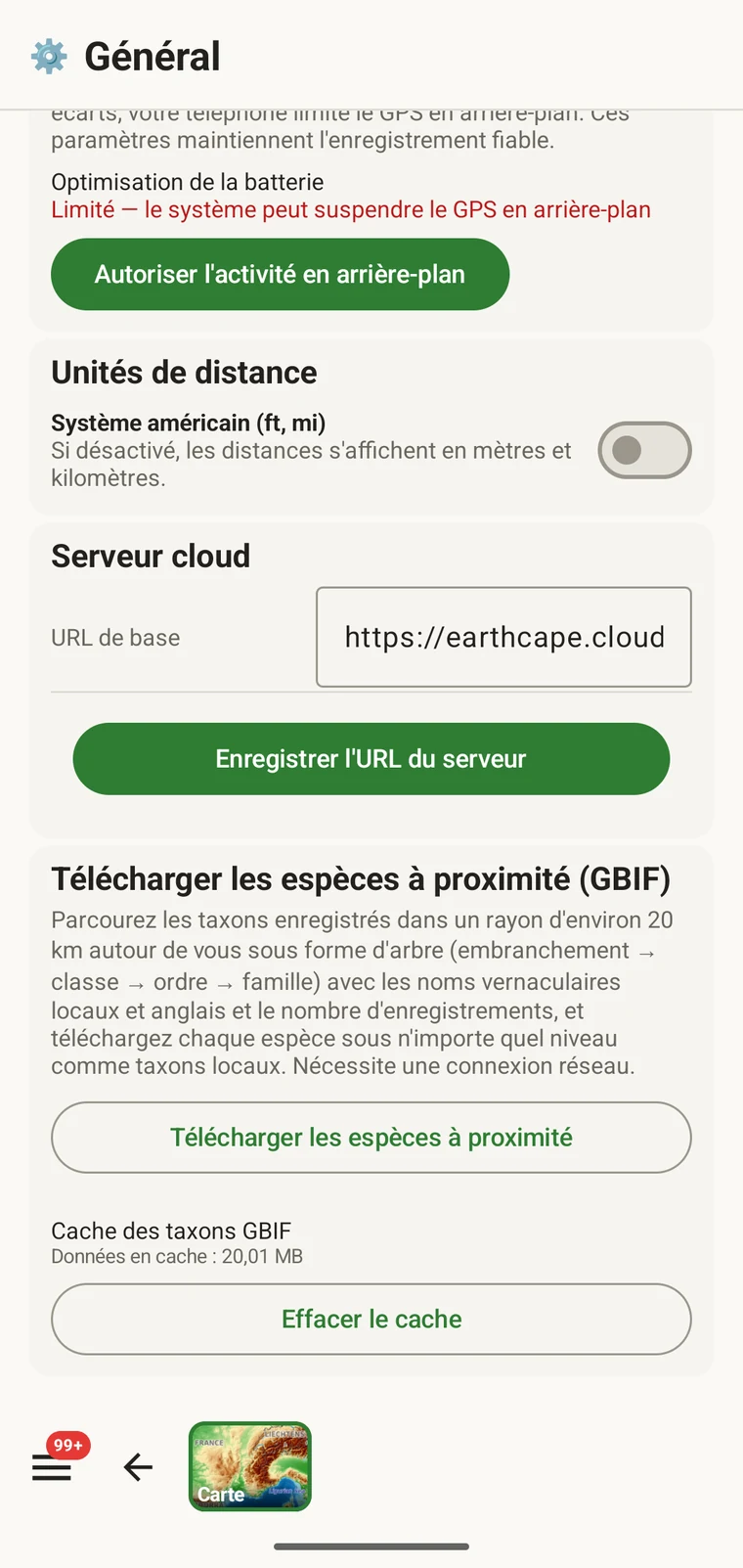
Y accéder
The entry point is the Download nearby species (GBIF) card under Menu → Admin → General; it is also offered during first-run setup. Scroll to the card and tap Download nearby species. The query runs against the live GBIF API, so you need a connection. Run it before you leave for the field, not once you have lost signal.
Ce que renvoie la requête
The query looks at GBIF occurrence records within 20 km of your current position and groups them by phylum, giving for each phylum the number of distinct taxa at the chosen detail level (species by default). The sheet shows the top-level summary once Get data has run.
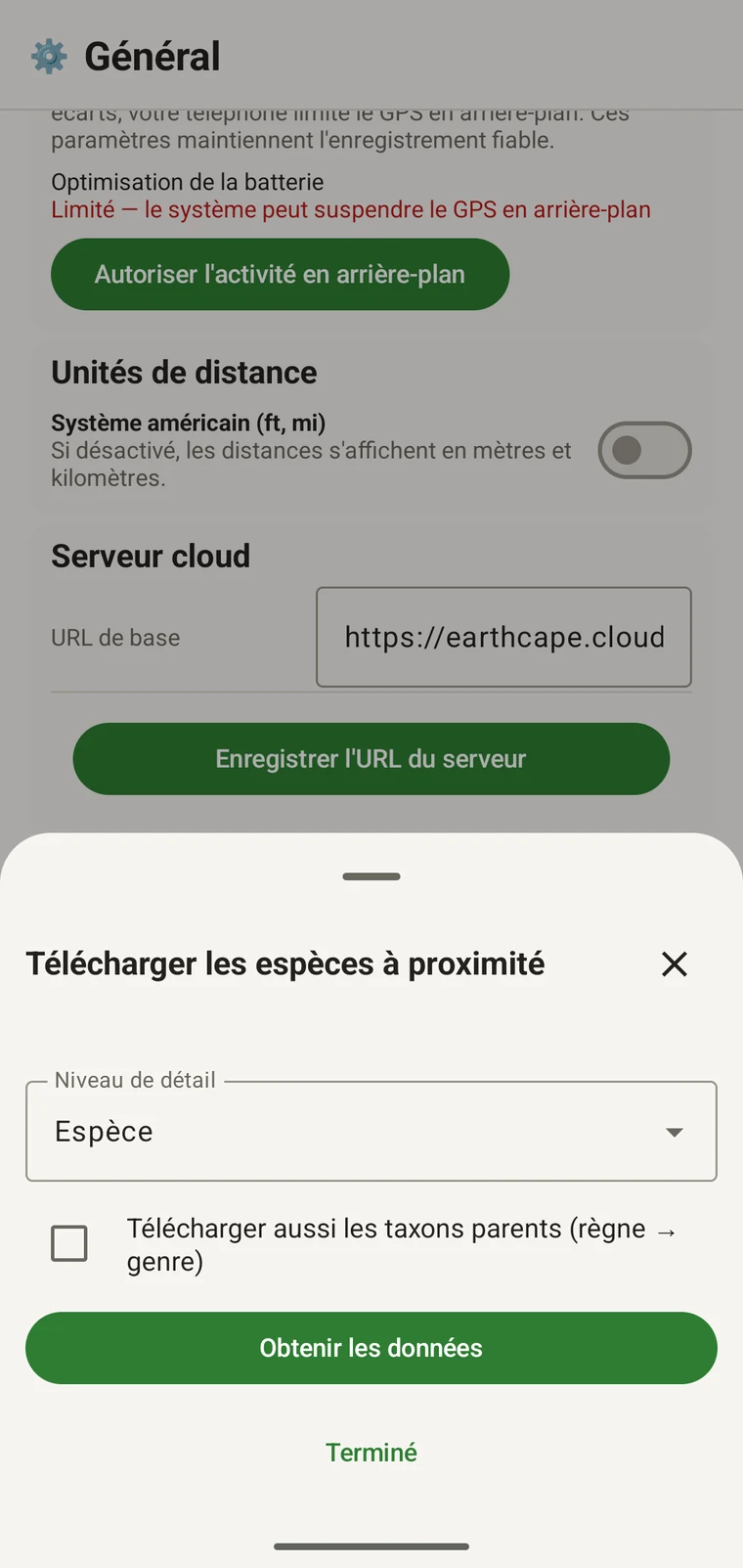
On opening, the sheet shows two controls and two buttons:
- Detail level (Phylum, Class, Order, Family or Species; Species is the default) — sets how far down the taxonomy the download goes when you tick a group.
- Also download parent taxa (kingdom → genus) checkbox — off by default; covered in its own section below.
- Get data — takes a GPS fix and loads the taxonomic tree for the area. Nothing is downloaded yet.
- Terminé — ferme la feuille.
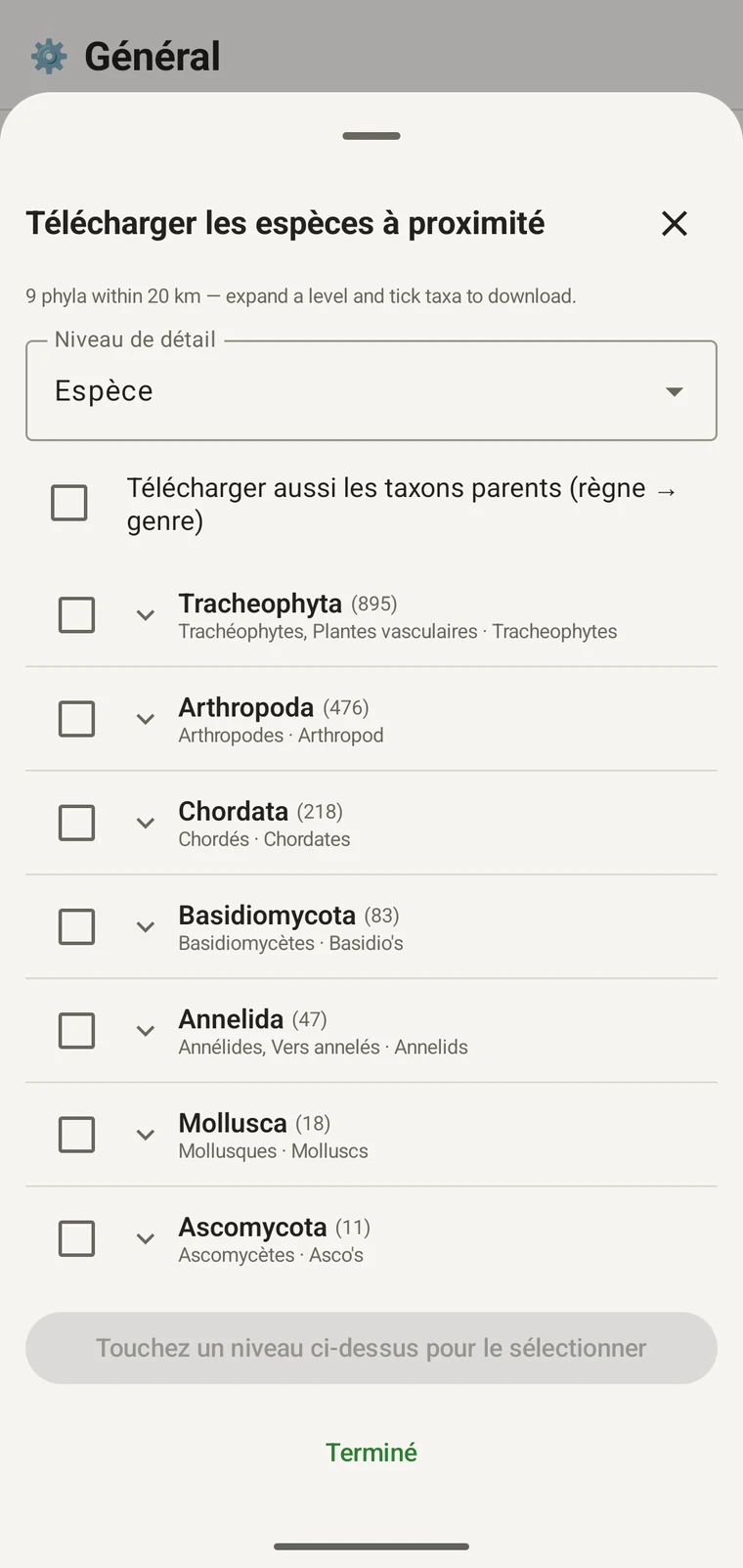
Once the tree has loaded the header reads, for example, "9 phyla within 20 km — expand a level and tick taxa to download.", a Select all row appears above the tree, and a Download N selected button replaces Get data.
L'exemple ci-dessous provient d'un inventaire en montagne. Votre propre site renverra ses propres chiffres.
| Embranchement | Species within 20 km |
|---|---|
| Tracheophyta | 895 |
| Arthropoda | 476 |
| Chordata | 218 |
| Basidiomycota | 83 |
| Annelida | 47 |
| Mollusca | 18 |
| Ascomycota | 11 |
Explorer l'arbre
Tap a phylum to expand it to its constituent classes, and tap a class to expand to orders. At each level the number in brackets is the count of distinct taxa at the chosen detail level recorded under that group within the search radius. A count shown as 1,000+ has hit the query cap.
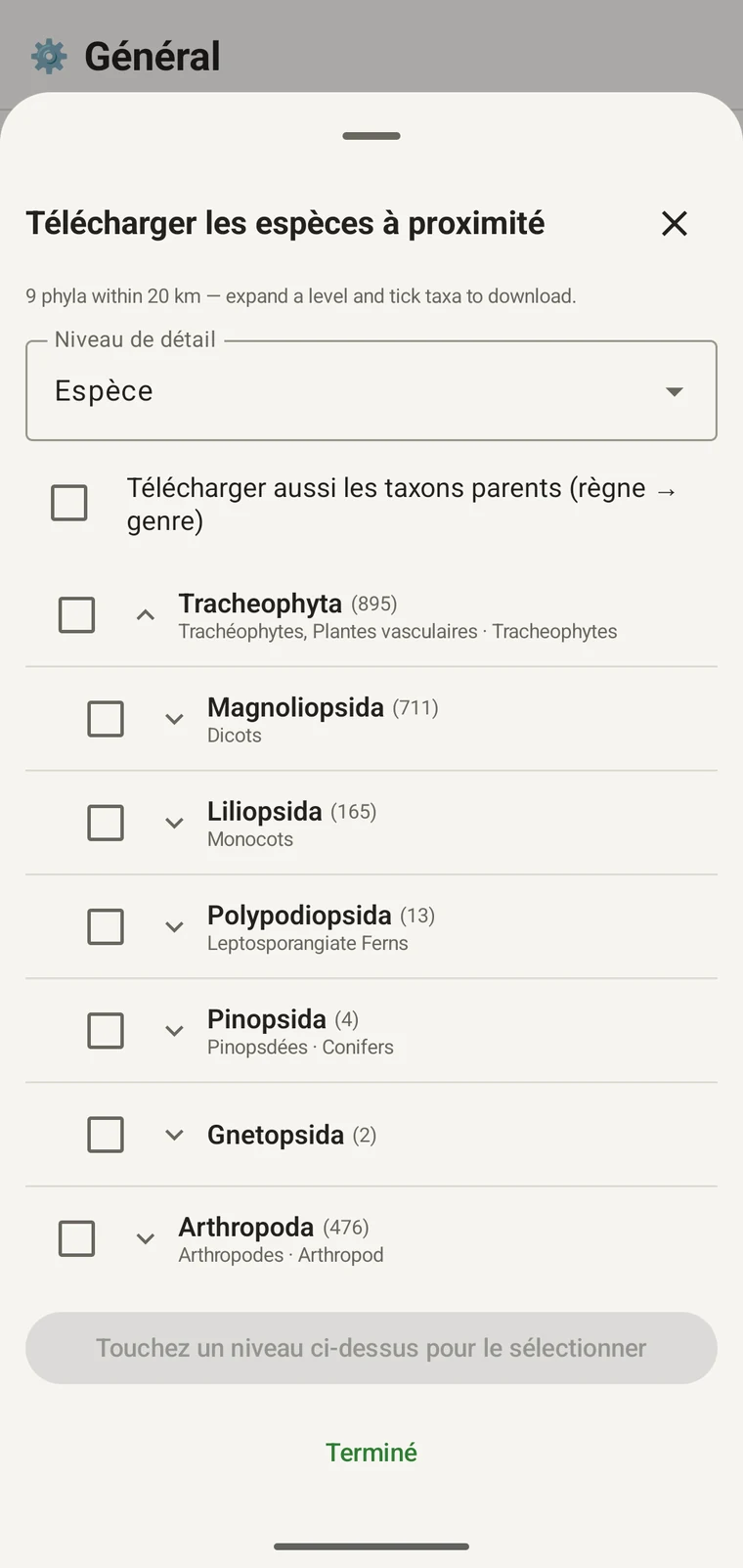
Pour poursuivre le même exemple : Tracheophyta se développe en Magnoliopsida 711, Liliopsida 165, Polypodiopsida 13, Pinopsida 4, Gnetopsida 2. Développer Magnoliopsida donne Asterales 115, Lamiales 100, Fabales 93, Rosales 56, Caryophyllales 49, chacun affiché avec son nom vernaculaire.
The counts are numbers of distinct taxa in the published record, not record totals and not abundance estimates. A high count means many taxa in that group have been recorded and published for this area; a low count means the group is either genuinely species-poor here or simply under-surveyed and under-published. The distinction matters when you use the figures to plan work — see the section on survey planning below.
Niveau de détail et taxons parents
The Detail level control sets the rank down to which taxa are downloaded when you tick a group. At Species, the download includes all species in GBIF's record for that group within the radius. If you are working at a coarser resolution — mapping genera only, for example — you can set the detail level to Family, Order, Class or Phylum to reduce the volume of names brought onto the device.
The Also download parent taxa (kingdom → genus) checkbox controls whether the higher ranks are fetched alongside the species. It is off by default; tick it in almost every case. Without it, the species names arrive on the device as orphans: the taxonomy held locally has no genus, family or order to attach them to, so they cannot be browsed by higher taxon and any rollup by group in your own data will not resolve correctly. Leave it off only if storage is genuinely tight and you intend to work entirely at species level with no hierarchical browsing.
Télécharger des taxons sur l'appareil
Nothing is pre-loaded onto the device for any particular site. The GBIF query populates the local taxonomy with GBIF Backbone names known to occur nearby, so when you record an observation you are picking from taxa that have actually been found at the site, rather than searching the full global list — and those names stay on the device once they are downloaded.
- Réglez le Niveau de détail sur le rang qui correspond à vos besoins de saisie. Espèces est la valeur par défaut.
- Tap Get data to load the tree for your position.
- Touchez un embranchement pour le développer, puis descendez jusqu'à la classe ou à l'ordre voulu.
- Cochez la case en regard de chaque groupe que vous allez relever. Vous pouvez cocher à n'importe quel rang — cocher une classe télécharge tous les taxons qui la composent jusqu'au niveau de détail que vous avez fixé.
- Tick Also download parent taxa unless storage is genuinely tight.
- Tap Download N selected. The app fetches the ticked taxa from GBIF and writes them to the local database in the background; a notification shows progress and you can close the sheet meanwhile.
- Touchez Terminé pour fermer la feuille.
Les noms téléchargés sont ensuite consultables hors ligne lorsque vous saisissez des observations, comme décrit dans Enregistrer des observations. Vous choisissez parmi des noms connus localement au lieu de saisir de mémoire dans la taxonomie mondiale complète.
S'en servir pour planifier un inventaire
Avant une saison de terrain, lancez la requête sur le site envisagé et lisez les effectifs au niveau de l'embranchement avant de télécharger quoi que ce soit. La répartition des effectifs vous indique quels groupes sont bien représentés dans les données publiées pour cette zone et lesquels n'y figurent qu'à peine.
A phylum with a handful of taxa is either genuinely absent from the site or under-surveyed and under-published there. Both cases are useful to know before a trip: genuine absence tells you where not to spend effort, and a thin published record for a group you expect to be present identifies a gap you can target.
Ne téléchargez des taxons que pour les groupes que vous relèverez effectivement lors d'une sortie donnée. Charger l'arbre complet sur l'appareil n'apporte rien si vous travaillez sur un seul embranchement ; le téléchargement demande du temps et une bande passante dont vous ne disposerez peut-être pas.
Limites
La requête exige une connexion active à l'API GBIF. Elle ne peut pas fonctionner hors ligne, c'est pourquoi la démarche prévue consiste à la lancer avant de quitter un lieu connecté.
The search radius is 20 km around your current position. This is fixed by the query; there is no radius control in the app.
Les effectifs reflètent ce qui a été publié dans GBIF. La couverture est inégale d'une région à l'autre et d'un groupe taxonomique à l'autre : les vertébrés d'Europe occidentale sont généralement bien représentés ; les invertébrés et les champignons d'Asie centrale ne le sont pas. Un effectif faible dit quelque chose des données publiées pour cette combinaison de groupe et de lieu, non directement du site lui-même. Interprétez les chiffres en gardant cela à l'esprit.
L'application ne publie rien vers GBIF. L'intégration est en lecture seule : vous interrogez des enregistrements existants et téléchargez des noms de taxons. Pour verser vos propres données dans GBIF, vous exportez depuis l'application un fichier Darwin Core Archive ou GBIF DwC-DP et le soumettez par la voie GBIF habituelle — voir Formats d'export pour les formats de fichier disponibles.