
Дані
Перегляд ваших даних
Records live in an ordinary database on the device. The lists behave like a data grid — you can inspect and correct your own observations without a round trip to a server. Column choice and filtering are available on every list, sorting by column header on a tablet, and every row opens directly into the record's edit form.
Списки
Five lists cover the records you will check most often.
| Список | Що містить |
|---|---|
| Спостереження | Кожна знахідка таксона, записана в проєкті, з полями форми, позицією, міткою часу та прикріпленими фото |
| Локалітети | Іменовані місця, що слугують просторовими прив'язками для візитів і спостережень |
| Виходи | Облікові події, що групують спостереження, зроблені в одному локалітеті за одну сесію; див. Запис спостережень |
| Таксони | The species list for this project — the taxa actually recorded — with a switch to browse the full reference taxonomy |
| Файли | Photos and attachments across the whole project, shown as a grid or gallery |
Список спостережень
The observation list is the main working view for checking what was recorded. On a tablet, tap a column header to sort by it and tap again to reverse the order. Tap any row to open the observation's detail form, where you can correct any field and save.
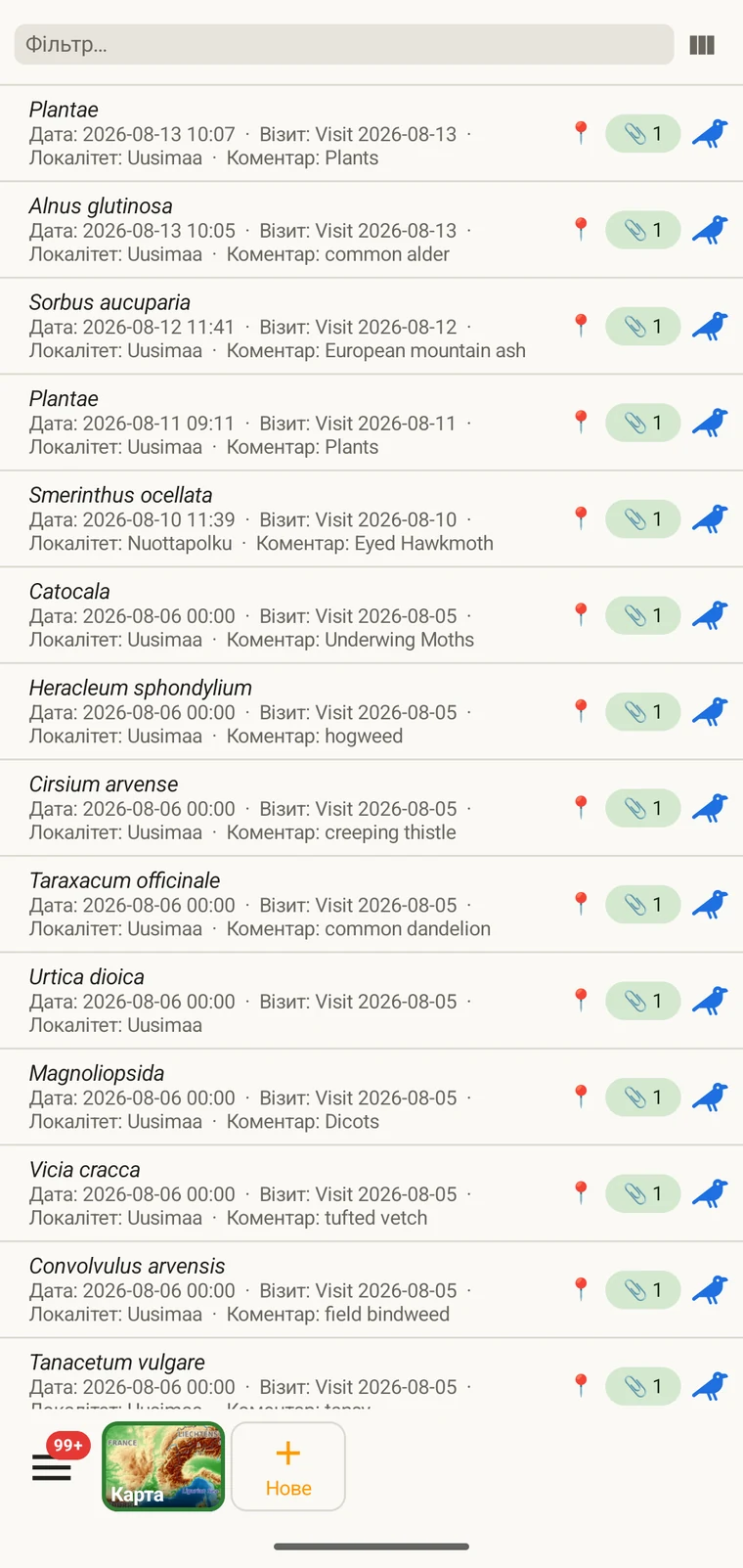
The list always shows the project's complete set of observations. On a tablet, use sorting to spot outliers — sorting by date surfaces any records with an implausible timestamp, and sorting by taxon groups occurrences of the same species so you can compare their field values.
Вибір стовпців
Засіб вибору стовпців дає змогу визначити, які поля з'являються у списку. Торкніться значка вибору стовпців, щоб відкрити його.
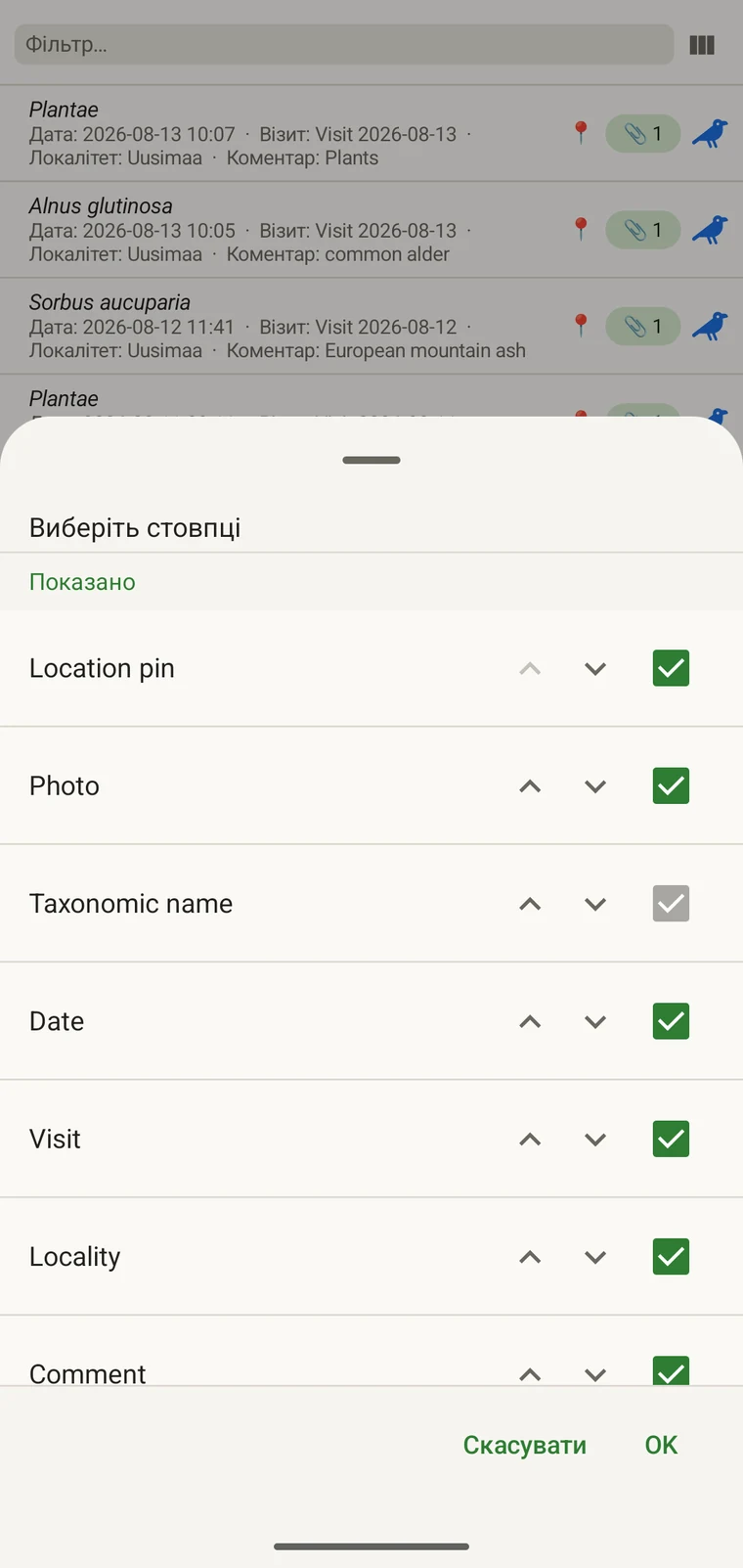
Every custom field appears in the picker; Show in list only decides whether it is on by default (see Forms and custom fields). A practical approach: put the two or three fields you are checking for errors into the list so a visual scan catches them without opening individual records. If you are checking whether abundance counts were filled in, add that column; if you are verifying that the observer name is consistent, add that one instead.
Фільтрування
Type in the filter box above the list to narrow it. On a phone one box matches your text against every column shown in the list — taxon, date, visit, locality, comment and any custom column you have added. On a tablet each column has its own filter box under the header, and the boxes combine: typing in two columns returns only rows that match both.
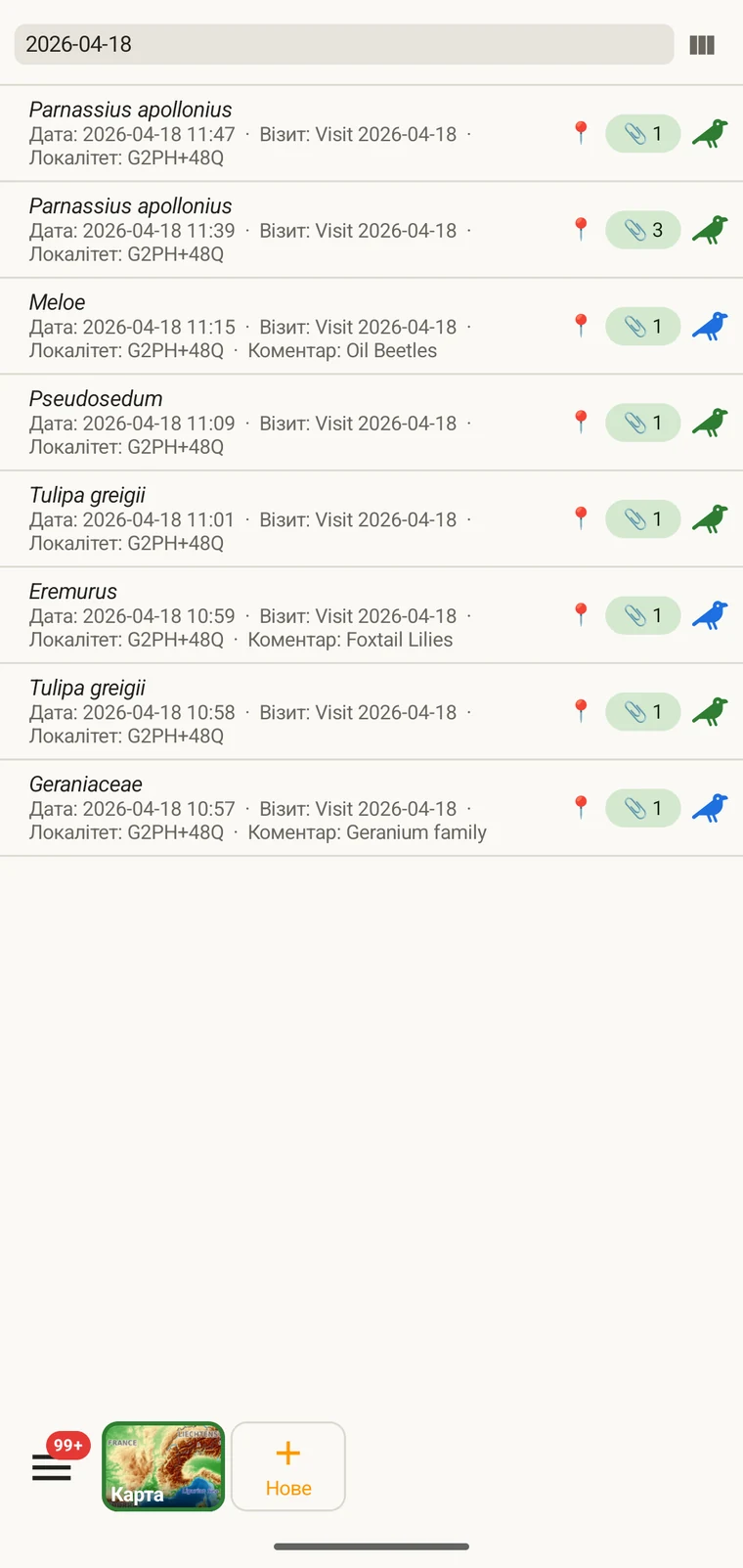
Example — everything recorded on one date. Type the date, for example 2026-04-18, into the filter box. Every observation from that day remains; clear the box to see all rows again.
Filtering matches text that is present. To find records where a field was left blank, add that field as a column and scan the list, or sort by that column on a tablet so the empty cells group together.
Візити та локалітети
Список візитів і список локалітетів дають змогу переглянути просторову й часову структуру проєкту окремо від самих спостережень.
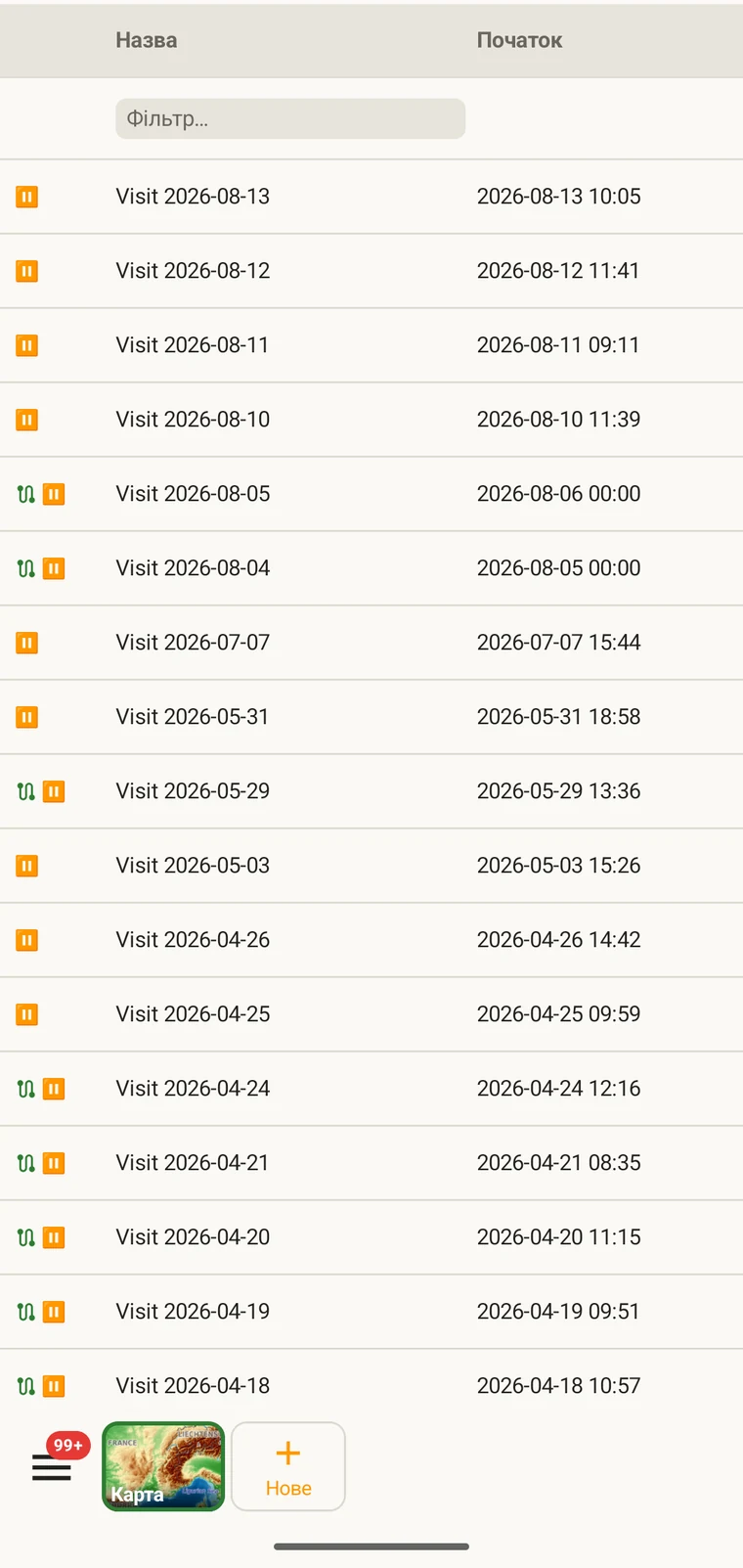
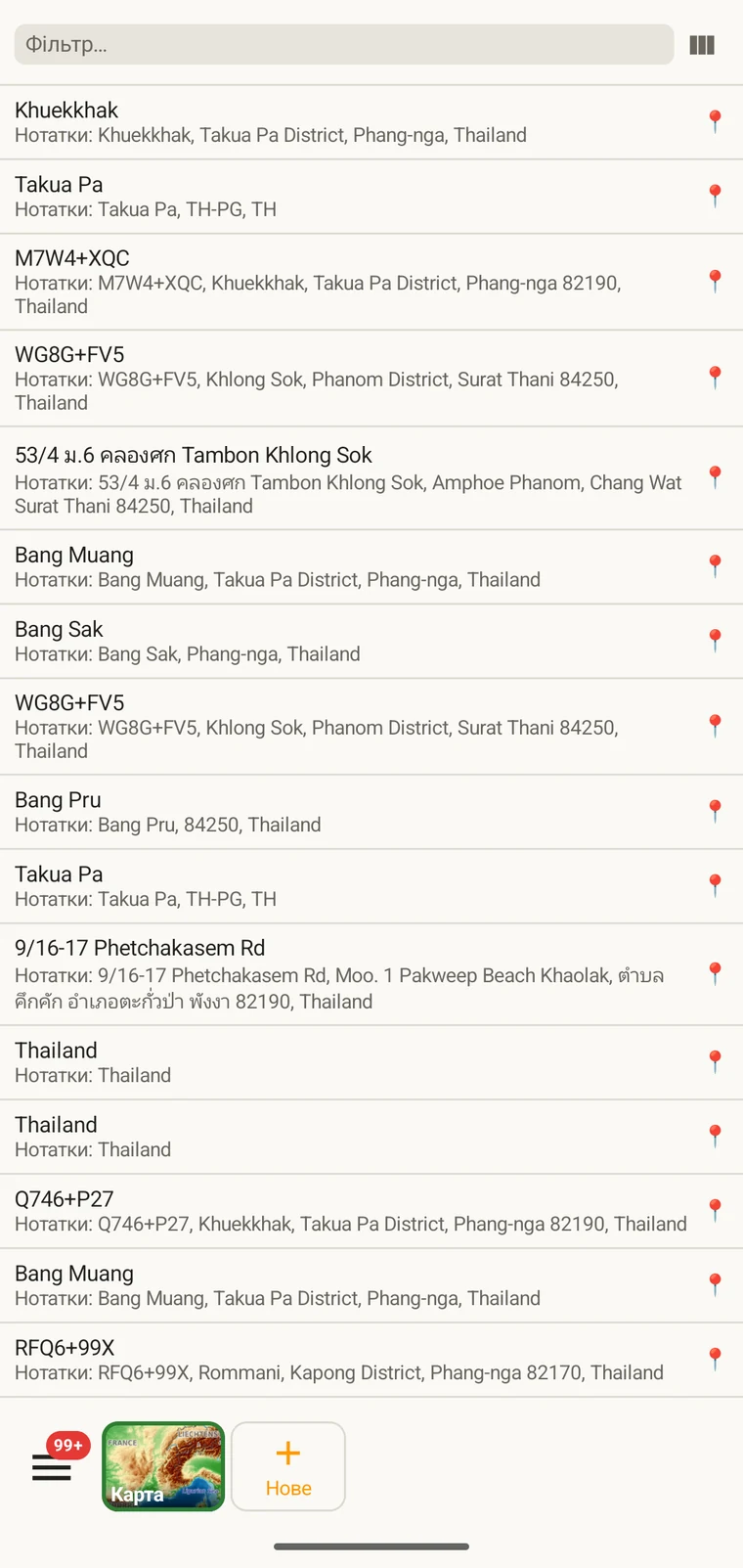
A visit is the survey event that connects a locality to a set of observations made during one session. Opening a visit from this list shows which observations were recorded under it. The localities list shows every named place in the project; tapping one opens its form so you can check or correct its name and position. Both lists filter and open to their edit forms in the same way as the observation list. See Recording observations for how visits and localities are created in the field.
Таксони
The taxa list opens on My species — the taxa recorded in the project. Switch to All names to browse the downloaded Catalogue of Life names.
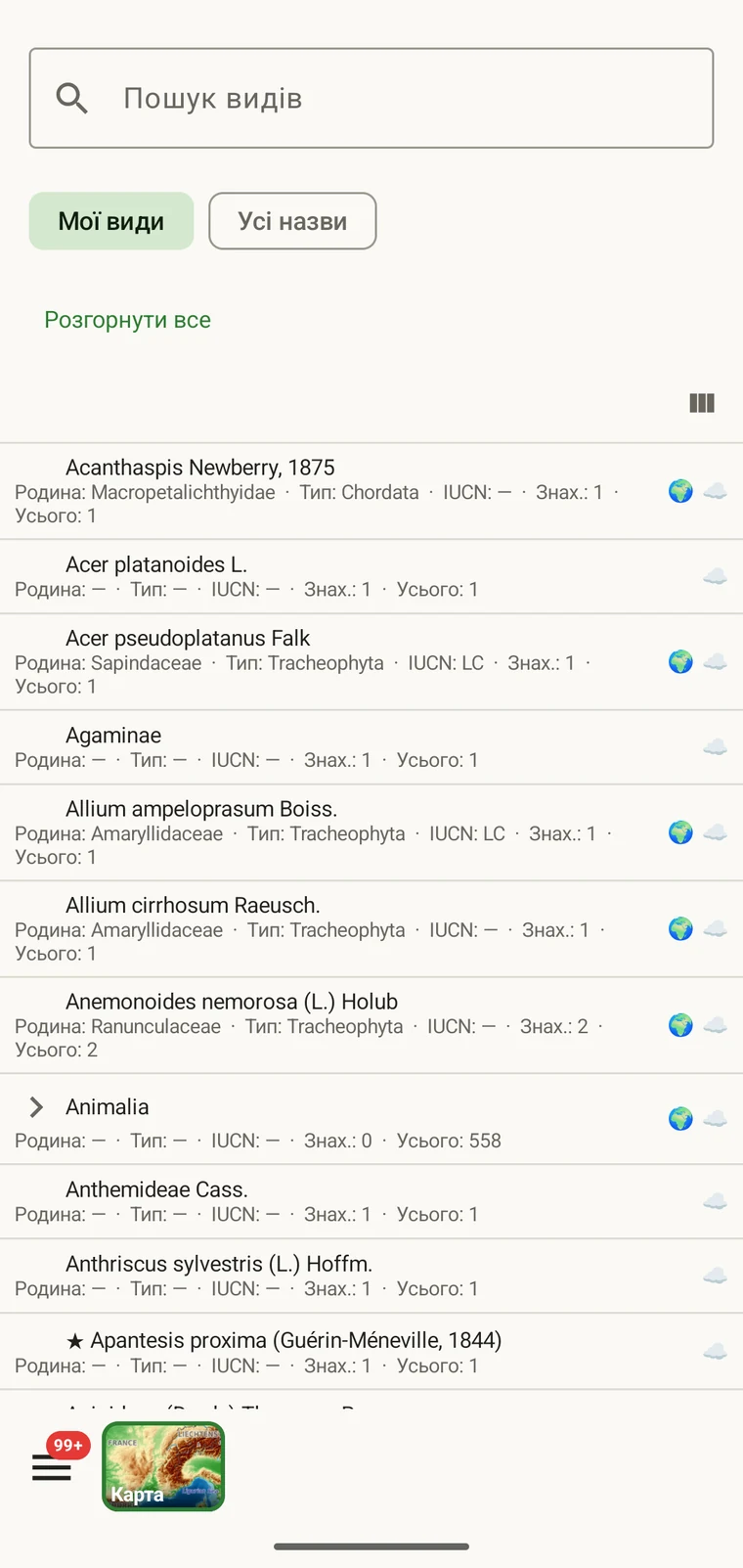
My species is the useful view before export, because it is the project's working species list. It is where you check for spelling inconsistencies and near-duplicate names that arose from entering the same species differently across sessions — for example Tulipa greigii entered once with a capital G, or a vernacular name used as a taxon name on one record. The full reference taxonomy is also available through the search on the observation entry form (see Recording observations).
Фото
Подання файлів показує кожне зображення, прикріплене до проєкту, в одній сітці.
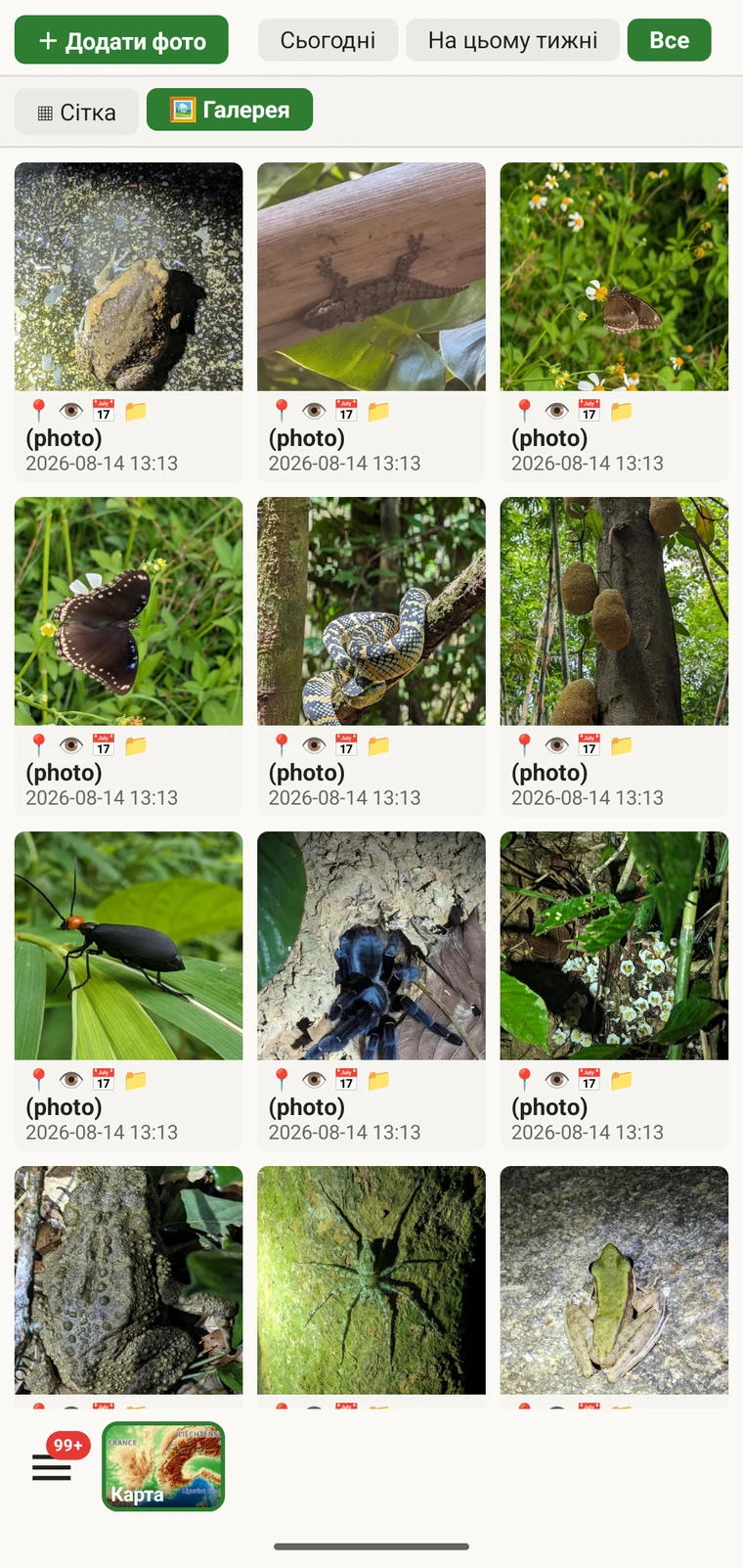
Практичне застосування — підтвердити, що фото справді прикріпилися до тих записів, до яких ви й гадали. У полі легко зробити знімок і рушити далі, перш ніж він завершить прикріплення, або прикріпити його не до того спостереження. Галерея дає кількість і візуальну перевірку: якщо ви записали десять спостережень, а галерея показує сім фото, три записи залишилися без нього. Торкніться будь-якого фото, щоб перейти до його батьківського запису.
Виправлення даних перед експортом
Короткий перегляд списків перед експортом виявляє найпоширеніші польові проблеми.
- Відкрийте список таксонів і перегляньте його на предмет майже однакових назв — того самого виду, введеного з варіацією написання або з іншим рангом. Виправте проблемні записи спостережень, щоб назва таксона була узгодженою всюди.
- Open the observation list, add the field you consider required in practice to the visible columns, then scan or sort that column for empty cells. Open each flagged record and fill in the missing value.
- Switch to the map and switch the basemap to Outline (see Map tools) so your own points are clearly visible against a plain background. Positions that landed in water or in the wrong valley stand out immediately. Tap to open and move the offending record.
- Перевірте галерею фото, щоб підтвердити, що кількість зображень відповідає очікуванням. Відкрийте будь-яке фото, що виглядає прив'язаним не туди, і перепризначте його.
- Коли дані виглядають правильними, перейдіть на сторінку Формати експорту.
Де зберігаються дані
All records are stored in a single SQLite database on the device. No account is required to create or read data, and your records leave the device only when you export them or use a connected service (Google Drive, Dropbox, Zenodo, iNaturalist). Map tiles, weather, GBIF look-ups and AI identification are fetched from their providers when you use those features. Recording works entirely offline from the moment you create a project.
A full SQLite backup is one of the twelve export formats. It produces a .db file that is a complete copy of the app's database — every project, every table as it sits on disk — readable by any SQLite tool. It is for analysis and archiving, not for restoring into the app; for device-to-device backup use Backup & Restore under Menu → Admin → Account, which backs the database up to Google Drive. See Export formats for all twelve options.