
Dữ liệu
Duyệt dữ liệu
Records live in an ordinary database on the device. The lists behave like a data grid — you can inspect and correct your own observations without a round trip to a server. Column choice and filtering are available on every list, sorting by column header on a tablet, and every row opens directly into the record's edit form.
Các danh sách
Five lists cover the records you will check most often.
| Danh sách | Chứa những gì |
|---|---|
| Quan sát | Mọi lần ghi nhận đơn vị phân loại trong dự án, cùng với các trường biểu mẫu, vị trí, dấu thời gian và ảnh đính kèm |
| Địa điểm | Những nơi có tên được dùng làm mốc không gian cho các chuyến khảo sát và quan sát |
| Chuyến khảo sát | Các sự kiện khảo sát nhóm những quan sát thực hiện tại một địa điểm trong một phiên; xem Ghi chép quan sát |
| Đơn vị phân loại | The species list for this project — the taxa actually recorded — with a switch to browse the full reference taxonomy |
| Tệp | Photos and attachments across the whole project, shown as a grid or gallery |
Danh sách quan sát
The observation list is the main working view for checking what was recorded. On a tablet, tap a column header to sort by it and tap again to reverse the order. Tap any row to open the observation's detail form, where you can correct any field and save.
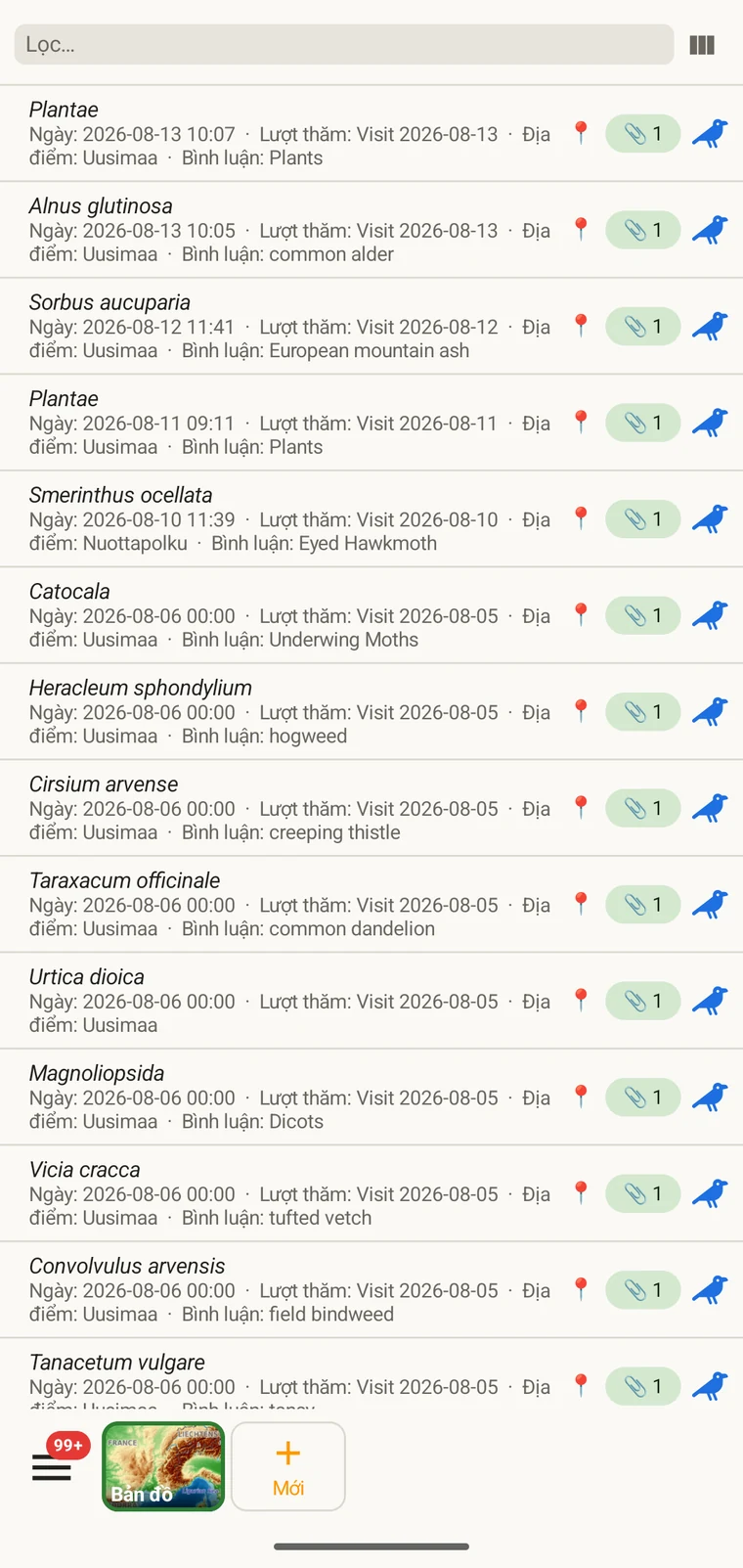
The list always shows the project's complete set of observations. On a tablet, use sorting to spot outliers — sorting by date surfaces any records with an implausible timestamp, and sorting by taxon groups occurrences of the same species so you can compare their field values.
Chọn cột
Bộ chọn cột cho phép chọn những trường nào xuất hiện trong danh sách. Chạm vào biểu tượng bộ chọn cột để mở nó.
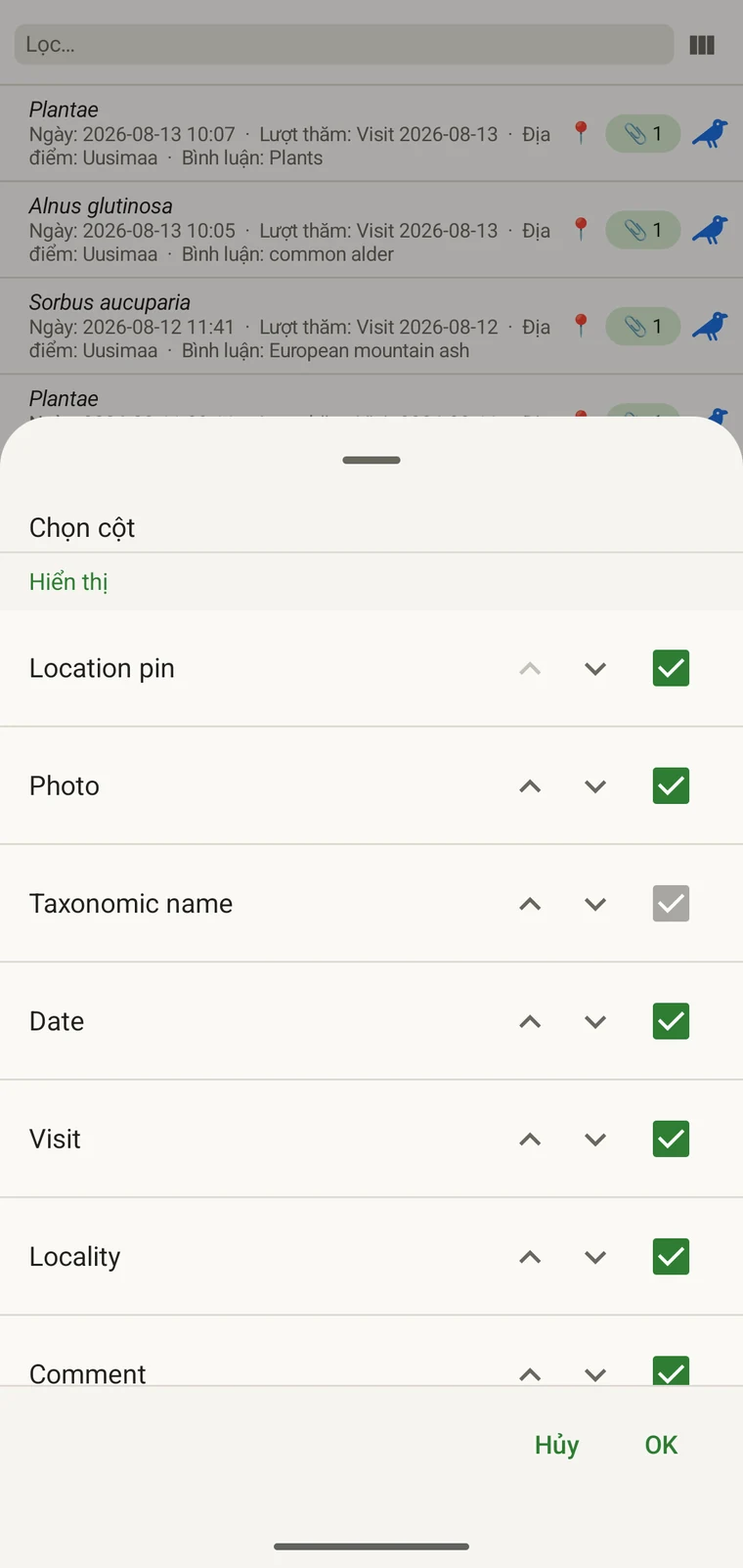
Every custom field appears in the picker; Show in list only decides whether it is on by default (see Forms and custom fields). A practical approach: put the two or three fields you are checking for errors into the list so a visual scan catches them without opening individual records. If you are checking whether abundance counts were filled in, add that column; if you are verifying that the observer name is consistent, add that one instead.
Lọc
Type in the filter box above the list to narrow it. On a phone one box matches your text against every column shown in the list — taxon, date, visit, locality, comment and any custom column you have added. On a tablet each column has its own filter box under the header, and the boxes combine: typing in two columns returns only rows that match both.
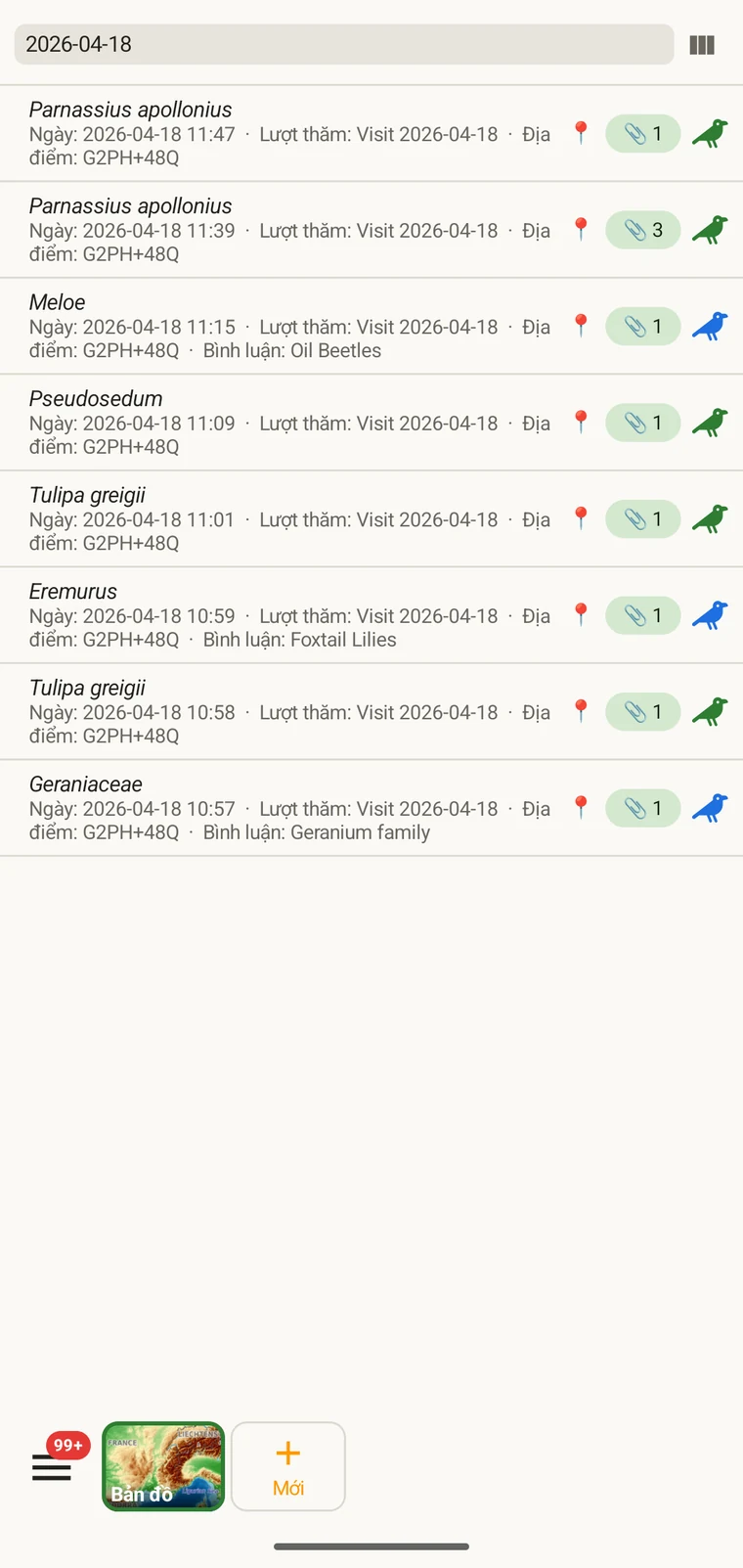
Example — everything recorded on one date. Type the date, for example 2026-04-18, into the filter box. Every observation from that day remains; clear the box to see all rows again.
Filtering matches text that is present. To find records where a field was left blank, add that field as a column and scan the list, or sort by that column on a tablet so the empty cells group together.
Chuyến khảo sát và địa điểm
Danh sách chuyến khảo sát và danh sách địa điểm cho phép xem lại cấu trúc không gian và thời gian của dự án tách biệt với bản thân các quan sát.
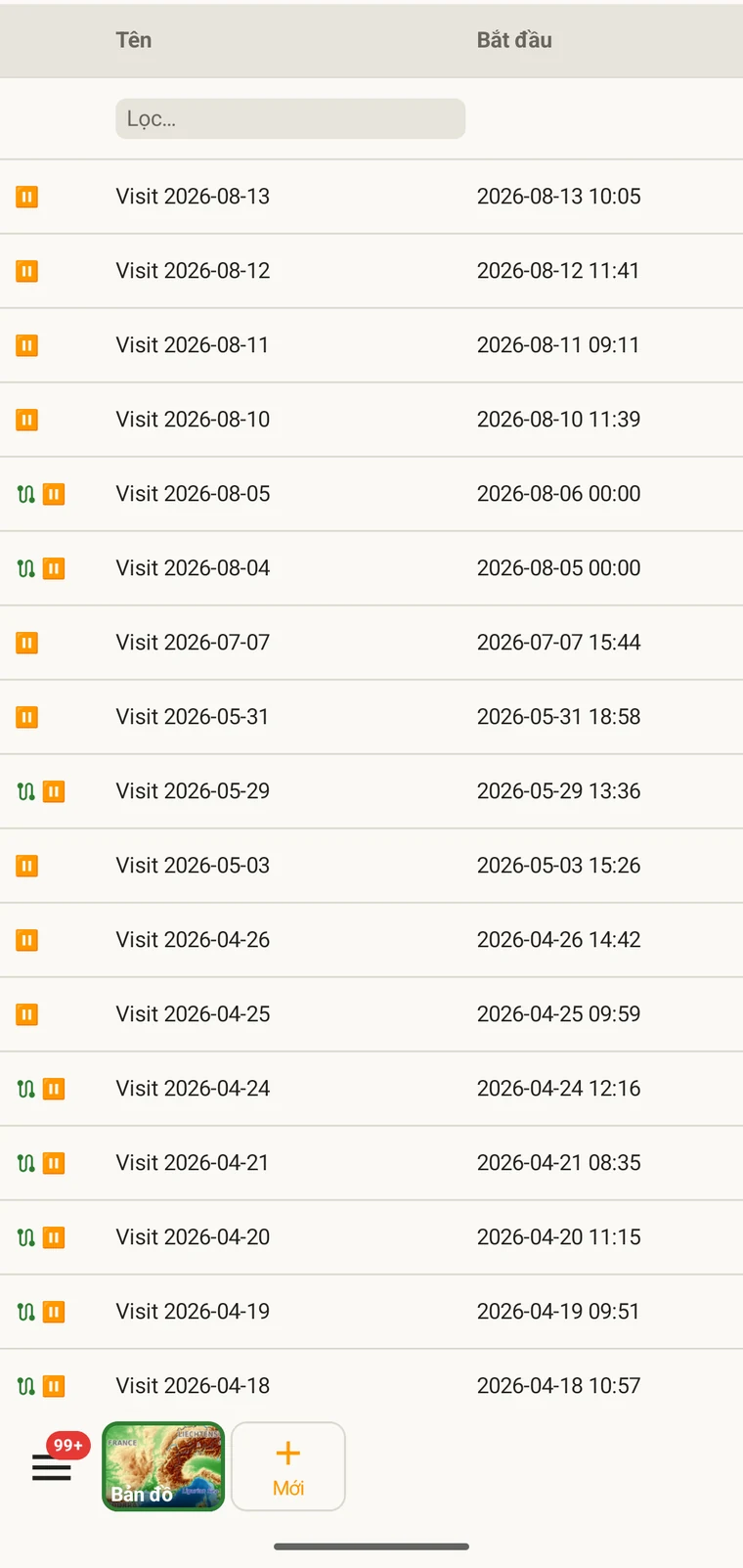
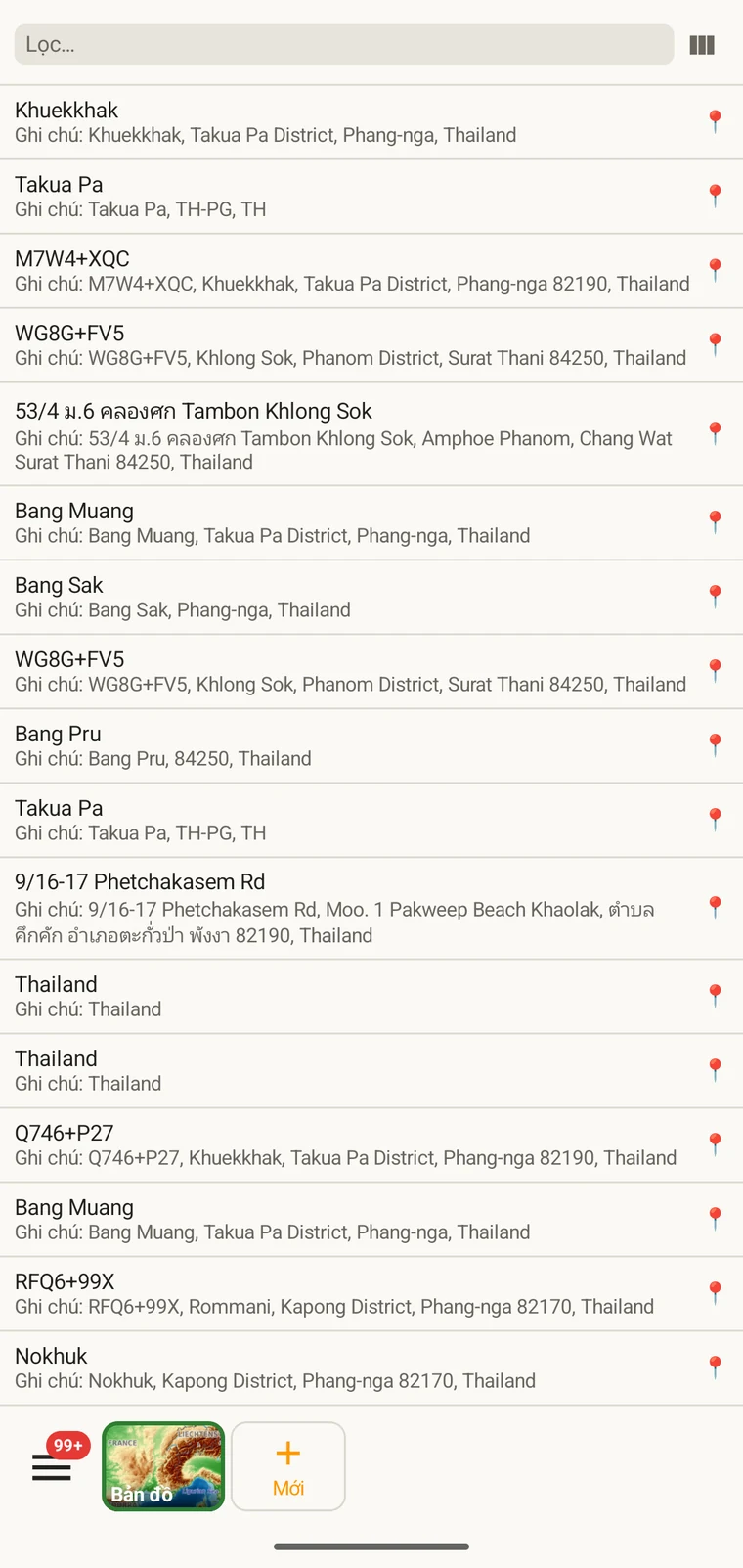
A visit is the survey event that connects a locality to a set of observations made during one session. Opening a visit from this list shows which observations were recorded under it. The localities list shows every named place in the project; tapping one opens its form so you can check or correct its name and position. Both lists filter and open to their edit forms in the same way as the observation list. See Recording observations for how visits and localities are created in the field.
Đơn vị phân loại
The taxa list opens on My species — the taxa recorded in the project. Switch to All names to browse the downloaded Catalogue of Life names.
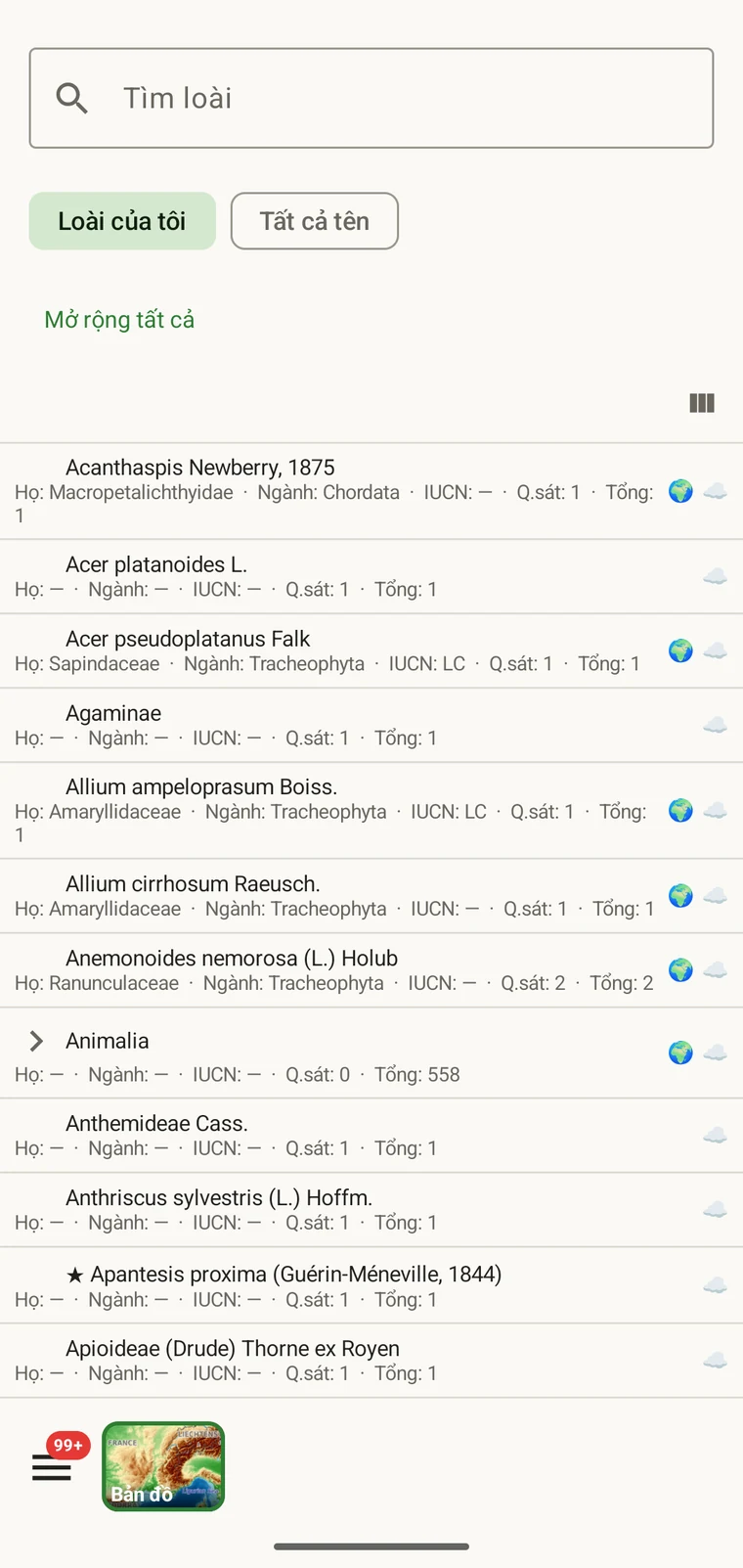
My species is the useful view before export, because it is the project's working species list. It is where you check for spelling inconsistencies and near-duplicate names that arose from entering the same species differently across sessions — for example Tulipa greigii entered once with a capital G, or a vernacular name used as a taxon name on one record. The full reference taxonomy is also available through the search on the observation entry form (see Recording observations).
Ảnh
Giao diện tệp trình bày mọi hình ảnh đính kèm dự án trong một lưới duy nhất.
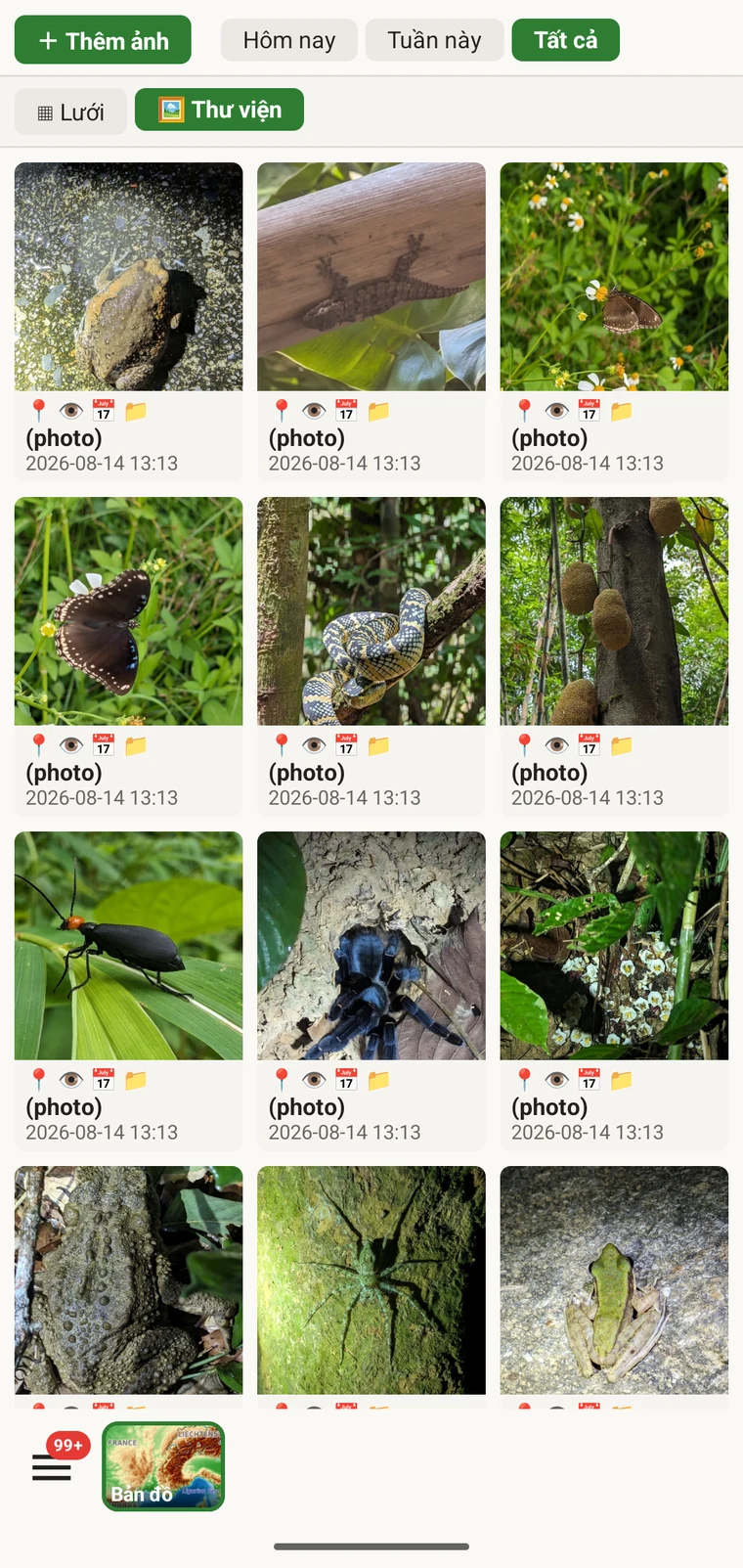
Công dụng thực tế là xác nhận rằng ảnh đã thực sự đính kèm vào những bản ghi đúng như dự tính. Khi ghi chép ngoài thực địa, rất dễ chụp một tấm ảnh rồi đi tiếp trước khi ảnh đính kèm xong, hoặc đính kèm nó vào nhầm quan sát. Thư viện ảnh cho biết số lượng và cho phép kiểm tra bằng mắt: nếu đã ghi mười quan sát mà thư viện chỉ hiển thị bảy ảnh, thì có ba bản ghi không có ảnh. Chạm vào bất kỳ ảnh nào để chuyển đến bản ghi cha của nó.
Sửa dữ liệu trước khi xuất
Một lượt rà nhanh qua các danh sách trước khi xuất sẽ phát hiện những vấn đề thực địa thường gặp nhất.
- Mở danh sách đơn vị phân loại và rà tìm những tên gần trùng nhau — cùng một loài được nhập với biến thể chính tả hoặc bậc phân loại khác. Sửa những bản ghi quan sát có vấn đề để tên đơn vị phân loại nhất quán trong toàn bộ dự án.
- Open the observation list, add the field you consider required in practice to the visible columns, then scan or sort that column for empty cells. Open each flagged record and fill in the missing value.
- Switch to the map and switch the basemap to Outline (see Map tools) so your own points are clearly visible against a plain background. Positions that landed in water or in the wrong valley stand out immediately. Tap to open and move the offending record.
- Kiểm tra thư viện ảnh để xác nhận số lượng ảnh khớp với dự kiến. Mở bất kỳ ảnh nào trông như bị gán nhầm và gán lại nó.
- Khi dữ liệu đã ổn, chuyển sang Định dạng xuất.
Nơi dữ liệu được lưu trữ
All records are stored in a single SQLite database on the device. No account is required to create or read data, and your records leave the device only when you export them or use a connected service (Google Drive, Dropbox, Zenodo, iNaturalist). Map tiles, weather, GBIF look-ups and AI identification are fetched from their providers when you use those features. Recording works entirely offline from the moment you create a project.
A full SQLite backup is one of the twelve export formats. It produces a .db file that is a complete copy of the app's database — every project, every table as it sits on disk — readable by any SQLite tool. It is for analysis and archiving, not for restoring into the app; for device-to-device backup use Backup & Restore under Menu → Admin → Account, which backs the database up to Google Drive. See Export formats for all twelve options.